

Explore this content with AI:
YouTube in 2026 looks nothing like it did three years ago. AI has moved from a novelty feature inside a few tools to the foundational layer of every credible editing platform. Text-based editing — where trimming words from a transcript automatically cuts the corresponding video — is now standard. Auto-captions, AI B-roll generation, voice cloning, and one-click brand kits have compressed production timelines from hours to minutes.
The best video editor isn’t necessarily the most powerful one. It’s the one that gets out of your way and lets you publish. This guide ranks the ten best YouTube video editor available right now, covers the AI features that matter most, and shows you how to go from idea to published video using AI in under an hour.
The 10 Best YouTube Video Editor Ranked
1. Predis.ai
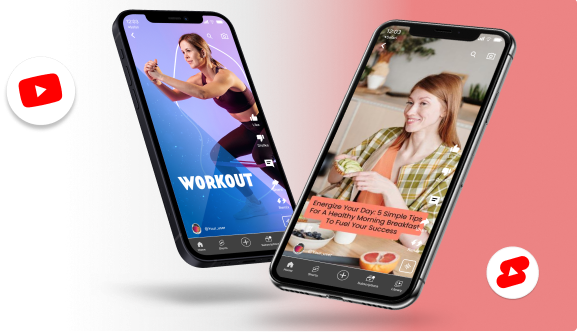
For YouTube Shorts creators, social media-first brands, and anyone who wants to go from idea to published video without touching a timeline, Predis.ai is the fastest path available.
AI video-maker tools allow creators to build a reliable content calendar without proportionally increasing their time investment — and Predis.ai is purpose-built around this principle. Enter a topic, a blog URL, or a script outline, and the tool generates a complete storyboard, selects on-brand B-roll, adds AI voiceover, and automatically produces animated captions.
Key Features:
- Text-to-Video generation
- AI voiceover
- Auto-captioning
- Brand kit application
- Peak Activity scheduling
Pros:
- A complete draft video in minutes
- The strongest tool available for YouTube Shorts and promotional content
- Scheduling intelligence removes the guesswork from posting time
- Brand consistency across every output with one-click brand kit application
Cons:
- Less granular control for long-form
- Complex narrative editing — not the tool for a 30-minute documentary or cinematic travel vlog
Best for:
Social media managers, Shorts-first creators, and brands that need consistent, on-brand video output without a dedicated production team.
Pricing:
Subscription — paid plans unlock higher volume, advanced scheduling, and the Peak Activity Window feature
2. Adobe Premiere Pro
Adobe Premiere Pro remains the professional benchmark.
The 2026 version has added meaningful AI at a steady pace: auto-reframing based on platform, audio-based editing, and a deep After Effects pipeline for creators who want broadcast-quality motion design.
While some AI tools arrive at a more gradual pace than the rest of the AI world, the plugin ecosystem and professional-grade control remain unmatched.
Key Features:
- Text-based editing
- After Effects integration
- AI Remix for audio
Pros:
- Unmatched plugin and color grading ecosystem
- Detailed control over every element
- Industry standard for collaborative workflows and client delivery
Cons:
Standalone app costs $34.49/month — Creative Cloud drops it to $22.99/month; steep learning curve for absolute beginners
Best for:
YouTubers producing long-form content who need maximum control and work within a team or client environment
3. DaVinci Resolve

DaVinci Resolve is one of the best video editor, and its Neural Engine AI features have made it a legitimate all-in-one platform for serious creators.
The free version offers professional-grade AI features including magic masking and voice isolation. Yes, tools like the free version of DaVinci Resolve offer professional-grade AI features such as magic masking and voice isolation.
While some advanced features are locked behind a paywall, the free versions are often sufficient for high-quality YouTube and social media production.
Key Features:
- Industry-leading colour grading
- Neural Engine AI masking
- Fairlight audio suite
- Fusion visual effects
Pros:
- The most powerful free tier of any professional editor
- Superior performance on high-end hardware
- Node-based colour workflow is unmatched
Cons:
- Requires a capable GPU to run smoothly
- The node-based workflow has a significant learning curve for creators new to professional editing
Best for:
Travel, documentary, and cinematic vloggers who prioritise visual quality and are willing to invest time in the learning curve
4. CapCut Desktop
The desktop version builds on the mobile app’s core strength with a more powerful timeline, a massive library of trending transitions, and AI background removal that works reliably on imperfect footage.
Key Features:
- Trending transitions library
- Auto-captions
- AI background removal
Pros:
- Extremely fast rendering
- Built-in assets optimised for social trends
- The easiest full-featured editor for beginners
Cons:
- Lacks advanced colour routing
- Limited file management for complex multi-source projects
- Some exports may add watermarks on the free tier
Best for:
Beginners and intermediate creators who want trend-aligned content without a technical learning curve
5. Async
Async brings together recording, editing, AI tools, and content repurposing into one workflow, which makes it especially useful for creators who don’t want to jump between five different apps just to finish one video. Its AI-powered video editor keeps the learning curve approachable while still giving users enough control to create polished content for YouTube, TikTok, Reels, podcasts, and client work.

Key Features:
- AI-powered video editor
- Auto subtitles and silence removal
- AI clips for turning long videos into short-form content
Pros:
- Beginner-friendly editing workflow with fast AI-assisted tools
- Built-in recording, editing, subtitles, and repurposing in one platform
- Great for turning podcasts, interviews, and webinars into social-ready videos
Cons:
- Advanced motion graphics tools are more limited compared to traditional pro editors
- Large multi-layer projects may feel less flexible than high-end desktop software
- Some AI tools work best with clear audio and structured talking-head content
Best for:
Creators, marketers, podcasters, and small teams looking for an all-in-one AI video editor that simplifies editing and content repurposing without a steep learning curve
6. Filmora 13
Filmora 13 sits in the most underserved position in the market: the creator who’s outgrown beginner tools but isn’t ready to commit to Premiere or Resolve. With affordable pricing, an excellent feature set, and an intuitive interface, it’s perfect for creating all types of YouTube content — gaming videos, tutorials, reviews, and more.
Key Features:
- Smart Cutout
- AI Image-to-Video
- Motion tracking
- Effect templates
Pros:
- Affordable
- Genuinely bridges the gap between beginner and professional workflows
- Strong template library
Cons:
- Occasional performance lags on older Windows machines under heavier projects
- Free trial places a noticeable watermark on exports
Best for:
Intermediate creators on a budget who want professional-looking results without the learning curve of Premiere or Resolve
7. Descript

Descript has emerged as one of the most talked-about video editor — and for good reason. Its core innovation is simple but transformative: instead of editing waveforms, you edit text.
Delete words in a transcript, and they’re instantly cut from your audio or video. For any creator whose content is primarily talking-head, interview, tutorial, or podcast-style, this changes everything.
Beyond text-based editing, Descript includes AI-powered audio enhancement (Studio Sound), voice cloning, automatic filler word removal, remote recording for up to 10 guests, real-time Google Docs-style collaboration, translation and dubbing in 30+ languages, and an agentic AI co-editor called Underlord that can execute multi-step editing tasks from natural language instructions.
Key Features:
- Transcript-based editing (Underlord AI)
- Studio Sound audio enhancement
- Overdub voice cloning
- Auto-captions in 20+ languages
- Social clip generation
Pros:
- Auto-captions
- Exports directly to Premiere, Final Cut, and DaVinci for final polish
Cons:
- Not ideal for cinematic editing or complex motion graphics
- Performance can slow on larger projects
- No offline editing
Pricing:
- Free plan available
- Creator plan from $24/month
Best for:
YouTubers, podcasters, educators, and course creators who primarily produce spoken-word content and want to edit fast without wrestling with a timeline
8. Shotcut

Shotcut offers a robust set of features that rival many paid video editors: wide format support via FFmpeg (no need to import files), native timeline editing without mandatory conversion, multi-track editing, chroma key (green screen), audio filters, and 4K export up to 8K via FFmpeg.
It includes export presets optimised for YouTube, Vimeo, and mobile devices — a small but significant quality-of-life detail that saves creators from misconfigured exports. In 2025, Shotcut added a Speech-to-Text feature for automatic subtitle generation, closing one of its most notable gaps.
Key Features:
- Multi-track timeline editing
- Native FFmpeg format support
- Chroma key
- Audio filters
- Speech-to-Text subtitles
- 4K/8K export, YouTube export presets
Pros:
- 100% free and open-source with zero watermarks
- Cross-platform (Windows, macOS, Linux)
- Broad format support means no pre-conversion needed
- Active open-source community continuously improving the tool
Cons:
- Dated interface
- Lack of AI features
- Absent screen recording capability makes it harder to recommend as a primary tool for creators used to modern AI-first workflows
- No built-in templates
- Can lag on complex projects or lower-spec machines
Pricing:
- Completely free, forever — no tiers, no trials
Best for:
Budget-conscious creators, Linux users, students, and intermediate video editors who want a capable, no-strings-attached desktop editor without ever paying a subscription fee
9. CyberLink PowerDirector
PowerDirector 365 is the best video editing software for YouTube beginners. It has all the features you need to edit YouTube videos, like title templates, transitions, animated overlays, video speed adjustment, a video stabilizer, special effects, and so much more.
Key Features:
- 360-degree video support
- AI motion tracking
- AI Background Removal
- Massive stock asset library
Pros:
- Extremely fast rendering on Windows PCs
- Large built-in stock library
- Offers both a subscription and a one-time perpetual licence
Cons:
- Interface design feels dated compared to modern AI-first tools
- The one-time purchase version often lacks access to the newest AI features
Best for:
Windows-based creators producing high volumes of 4K content who prioritise render speed and want a beginner-friendly starting point
10. InShot / VN Editor
Both InShot and VN Video Editor serve the same niche: fast, clean, vertical edits on a mobile phone. For Shorts content, quick social clips, or rough cuts that will be finished on desktop, both tools do exactly what they promise with zero unnecessary complexity.
Key Features:
- Clean vertical editing UI
- Basic transitions and filters
- Text overlays
- Audio trimming
Pros:
- Instant to learn
- Perfect for quick rough cuts on the go
- VN Editor is particularly clean for text-heavy Shorts
Cons:
- Limited feature set for 10+ minute long-form videos
- Not a primary editor for complex projects
Best for:
Creators who need a fast mobile option for Shorts and social clips alongside a more capable desktop workflow
How to Edit a YouTube Video with Predis.ai: Step by Step
The entire asset generation, voiceover, and assembly workflow happens inside Predis.ai — meaning your time goes into creative decisions, not troubleshooting software. Here’s the full process:
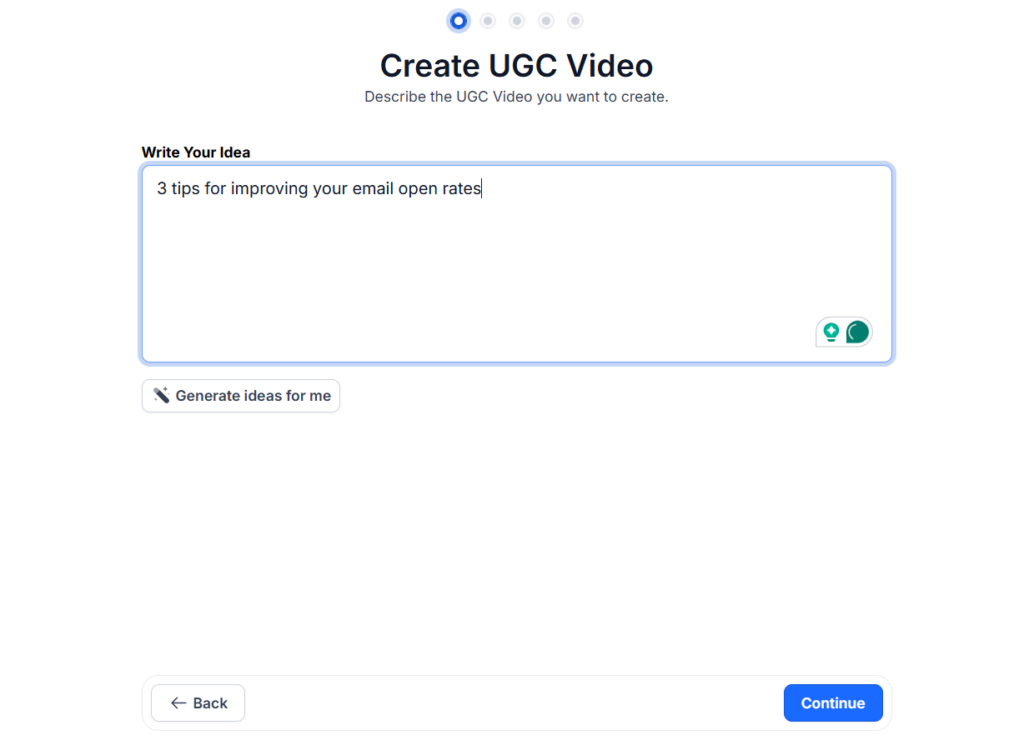
Step 1: The Prompt. Enter your video topic, a blog URL, or a script outline into the Text-to-Video generator. The AI generates a complete storyboard — scene structure, talking points, suggested visual treatments, and a hook — in seconds. You’re editing a working first draft, not starting from blank.
Step 2: AI Asset Selection. Predis.ai automatically selects B-roll footage matched to your topic, suggests background music matched to your content tone, and deploys AI voiceover if you’re not recording your own. The entire visual layer assembles without you touching a single clip.
Step 3: Refining the Script. Use the AI Chat to adjust tone. “Make this more energetic,” “Shorten the intro,” or “Add a stronger hook at the beginning” are all valid prompts. The AI edits the script and restructures the video accordingly.
Step 4: Custom Branding. Apply your brand kit — colours, fonts, logo placement — in a single click. Every scene updates simultaneously. No manual asset replacement across 15 clips.
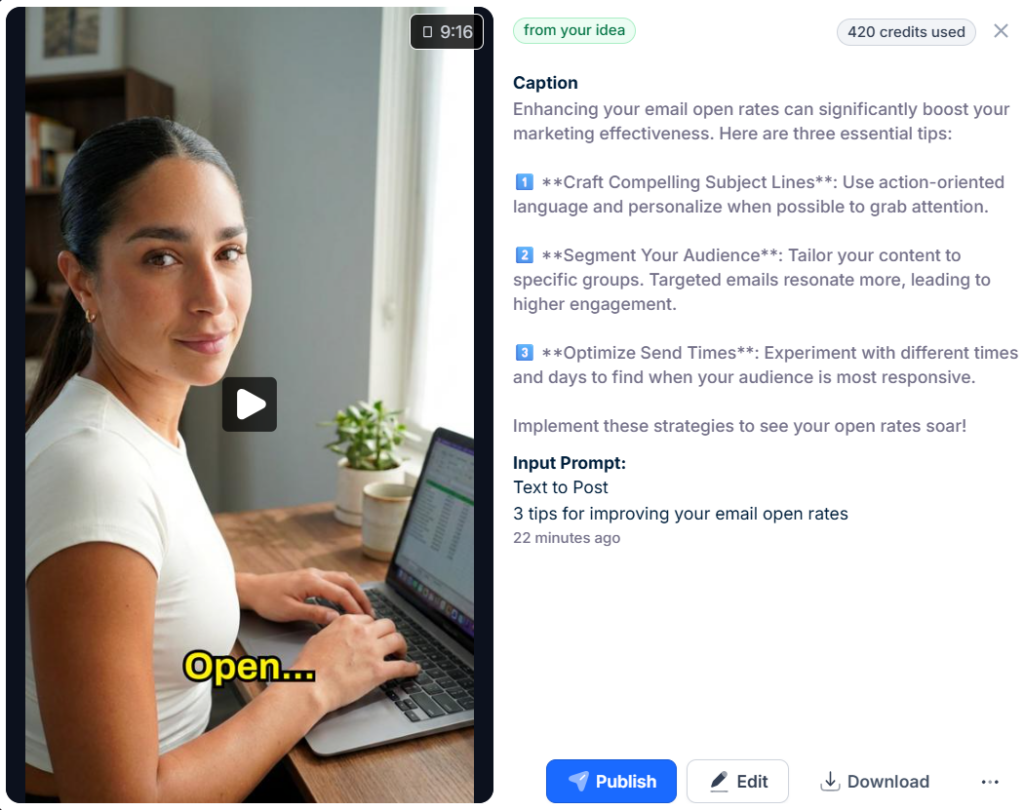
Step 5: Final Polish and Scheduling. Use the drag-and-drop editor to swap specific clips, add your own recorded voiceover, or fine-tune timing. Then schedule using the Peak Activity Window feature — Predis.ai analyses your audience’s behaviour and identifies the optimal publish time automatically. Here is what a final video looks like:
Best Practices for YouTube Editing
A good editing workflow also depends on choosing the best video editing software for your content style, especially when you need more control over cuts, audio, captions, and colour.
1. The 3-Second Pattern Interrupt
Retention data consistently shows viewers need a new visual or auditory stimulus every 3 seconds to stay engaged. This doesn’t mean every cut needs a transition — it means varying your shots, adding a text overlay, cutting to B-roll, or using a sound effect to give the brain something new to process.
2. Optimise for Silent Viewing
With 92% of viewers watching without sound, any video without on-screen captions is losing almost half its potential audience before a single word is heard. Captions are non-negotiable — and auto-captioning is now standard in every tool on this list.
3. Sound Design is 50% of the Video
Ambient audio layers, subtle transition sounds, and well-mixed dialogue create the professional feel that separates good video from great video. Most creators spend 90% of their edit time on visuals and 10% on audio. The ratio should be closer to 60/40.
4. Colour as Branding
A consistent LUT (colour preset) applied across all your videos creates a recognisable visual signature that followers associate with your channel before they even read the title. AI tools for intelligent colour matching can now match the grade from one shot to another automatically — making visual consistency achievable at scale.
Tips for Choosing the Right Video Editor
1. Assess your niche first
Vlogs need speed and a smooth talking-head workflow.
Documentaries and cinematic content need colour precision and timeline control.
Shorts-first creators need AI generation and fast mobile export.
Define your primary content format before evaluating tools — the best editor for a travel vlogger is not the best editor for a faceless educational channel.
2. Do a hardware check
Video editing didn’t just get better — it got heavier. A lot heavier. You’re not just trimming clips and adding music anymore.
You’re running real-time transcription, background removal, object tracking, colour grading, motion graphics, sometimes all at once.
DaVinci Resolve on a basic laptop is a painful experience. Predis.ai on the same machine runs smoothly. Match the tool to your current hardware.
3. Future-proof your choice
Prioritise tools that are actively integrating new AI features. An editor that was excellent in 2024 but has stalled on AI development will feel further behind every month.
Every tool in this list has a roadmap that includes expanded AI capabilities — the question is which ones are moving fastest in the direction that matters for your workflow.
The Best Video Editor Is the One You Actually Use
The single biggest predictor of YouTube channel growth isn’t video quality, thumbnail design, or posting frequency — it’s consistency. And consistency is only achievable when your editing workflow doesn’t feel like a second job.
Start with Predis.ai if you’re building a Shorts-first channel or need to produce content at volume without a team. Move to Descript when your content is primarily dialogue-driven, and you need to edit faster than a traditional timeline allows. Step up to Premiere Pro or DaVinci Resolve when your storytelling ambitions outgrow what simpler tools can deliver.
Use AI to handle the labour — asset generation, captions, scheduling — so your creative energy goes into the ideas, the framing, and the story. That’s the trade that compounds.
FAQ
Predis.ai is the strongest AI tool currently available for YouTube Shorts and short promotional videos — the Text-to-Video workflow is purpose-built for 60–90 second content.
Yes, but expect a 2–4 week adjustment period. The core editing concepts transfer between tools, but keyboard shortcuts, project file formats, and workflow habits are all tool-specific. Plan for the transition — don’t switch mid-series.
Thousands of channels with hundreds of thousands of subscribers are edited entirely on free software. The tool doesn’t grow your channel — your ideas, consistency, and understanding of your audience do.