

Instagram is always evolving, and recently has brought a major update – the platform has officially switched its grid layout size to 4:5. This change means vertical images now take up more screen space, making it even more important to make pictures fit on Instagram without cropping or losing quality.
So, what does this mean for you? If your images don’t match the new 4:5 aspect ratio, they might get cropped or not displayed as intended. But don’t worry! In this guide, we’ll explore how to make a picture fit on Instagram – so your content always looks perfect. Let’s dive in!
Understanding Instagram’s Image Size Requirements
Instagram is a visual-first platform, with 1.3 billion images shared every day. Whether you’re posting a photo, video, or story, knowing the right image size ensures your content looks sharp and fits perfectly without cropping.
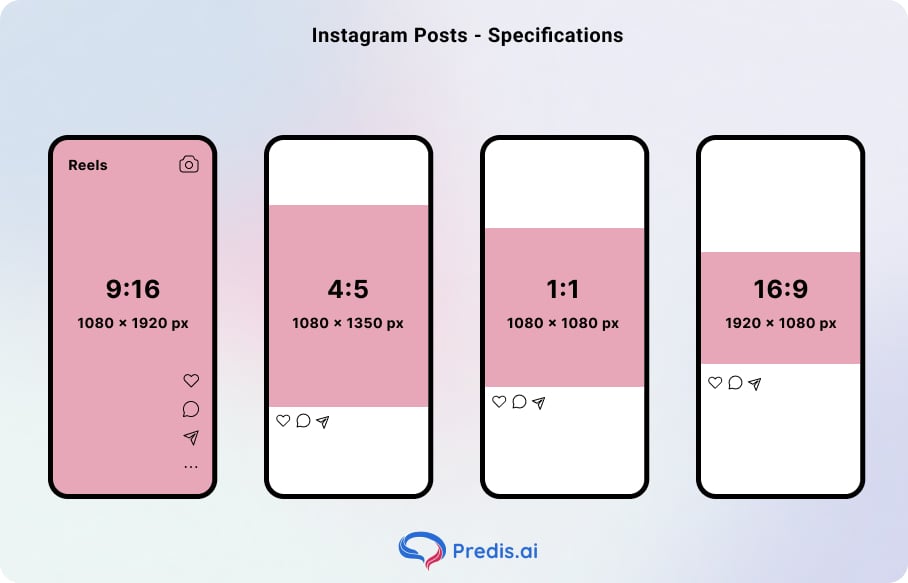
Instagram supports different aspect ratios and resolutions for various types of posts:
- Square Post (1:1) – 1080 x 1080 pixels (Standard grid post)
- Portrait Post (4:5) – 1080 x 1350 pixels (Taller vertical posts, ideal for engagement)
- Landscape Post (1.91:1) – 1080 x 566 pixels (Wider horizontal images)
- Instagram Story & Reels (16:9) – 1080 x 1920 pixels (Full-screen mobile format, ideal story and reel dimension)
- Profile Picture (1:1) – 110 x 110 pixels (Small display, circular crop applied)
Up next, let’s explore the five best methods to fit your images perfectly without compromising quality!
How to make a picture fit on Instagram? – 5 Methods
With Instagram’s 2025 update shifting the grid layout to 4:5, many users struggle with cropped or misaligned photos. If your image doesn’t fit Instagram’s new aspect ratio, it may lose important details. But don’t worry – there are easy ways to resize photos for Instagram without losing quality.
In the next sections, we’ll explore five simple methods to make sure your pictures fit perfectly on Instagram. Let’s dive in!
1. Using Instagram Feature
Instagram makes it easy to resize pictures without needing extra tools. In fact, over 60% of creators use Instagram’s AI-driven video and photo editing tools to adjust their content before posting. The built-in resizing option ensures your photos fit perfectly without manual editing.
Follow these steps to resize your picture on Instagram:
- Step 1: Open the Instagram app and tap the “+” icon at the top of the screen.
- Step 2: Select the photo you want to post.
- Step 3: Tap the resize icon (straight and inverted L symbols) in the bottom-left corner. This will automatically fit the image into the post frame.
- Step 4: Alternatively, use two fingers to pinch and zoom out until the entire image fits the screen.
- Step 5: Add your caption, filters, or edits, then hit “Share” to post.
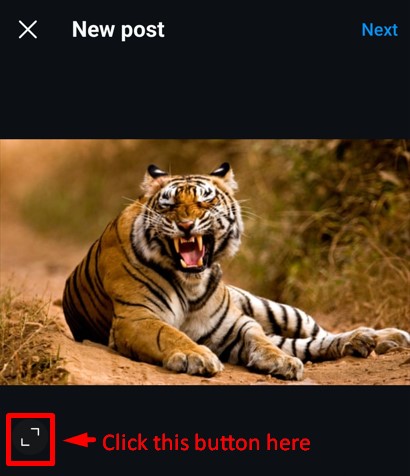
Using Instagram’s built-in resizing tool ensures your photos align with the new 4:5 aspect ratio without getting cropped. But if you need more customization options, check out the next method – using Adobe’s free resizer for perfect Instagram posts!
2. By using AI Tools
Want a quick, hassle-free way to make pictures fit on Instagram? Predis AI makes it effortless to generate Instagram posts, stories, reels, and ads in the perfect size – without any manual resizing.
With Predis AI, you can:
- Generate content in standard Instagram dimensions (4:5, 1:1, 16:9).
- Create custom templates for unique aspect ratios.
- Resize posts instantly with a dedicated resize button to fit different platforms.
- Edit, schedule, and analyze posts – all in one tool.
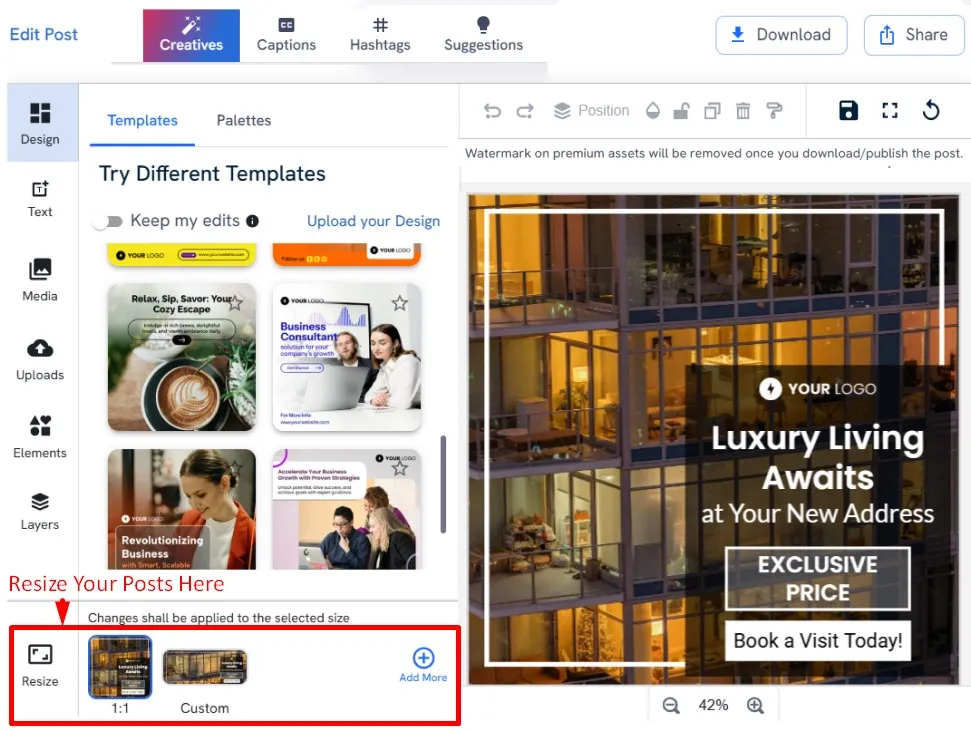
Predis AI is beginner-friendly, so you don’t need design skills to create high-quality Instagram visuals. Whether you’re a content creator or business owner, this AI tool helps you save time and keep your feed looking polished.
Ready to resize and create Instagram content effortlessly? Try Predis AI today and take your social media game to the next level!
3. Using Adobe’s Free Image Resizer
Adobe makes resizing images for Instagram effortless with its free online resizer. Now, you can select a custom aspect ratio for different social media platforms, including Instagram, Facebook, and YouTube. Whether you’re posting a story, reel, or grid post, Adobe’s tool helps you get the perfect fit without cropping.
Here’s how to resize photos for Instagram using Adobe’s resizer:
- Step 1: Go to Adobe’s image resizer for Instagram: Adobe Express Resizer.
- Step 2: Click “Upload Your Photo” and select the image you want to resize.
- Step 3: Choose the Instagram preset or manually select the aspect ratio (1:1 for square posts, 4:5 for portraits, 1.91:1 for landscape, and 16:9 for stories).
- Step 4: Use the editing tools to refine your image. You can remove backgrounds, adjust quality, or convert file types for better resolution.
- Step 5: Click “Download” to save your perfectly resized image.
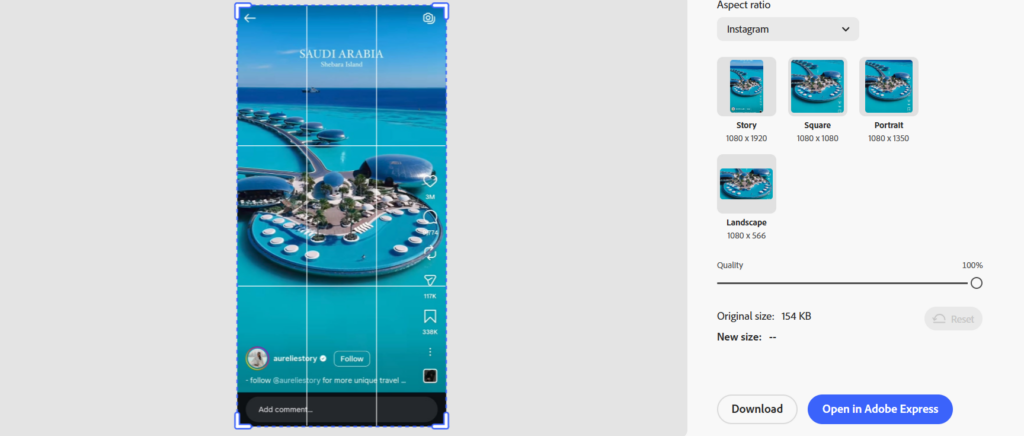
With Adobe’s resizer, you can ensure every Instagram post looks professional and fits the new 4:5 grid layout perfectly. Want an even quicker way to resize on your phone? Up next, we’ll show you how to do it directly from your phone’s gallery!
4. With Your Phone’s Gallery
Don’t want to use an external app? No problem! You can resize photos for Instagram right from your phone’s gallery or built-in editing tools. Both iPhone and Android offer easy ways to adjust image size before posting.
How to Resize Photos for Instagram on iPhone?
- Step 1: Open the Photos app and select the image you want to resize.
- Step 2: Tap “Edit”, then select the crop icon at the bottom.
- Step 3: Choose “Aspect Ratio” and select 4:5 for Instagram posts.
- Step 4: Adjust the image as needed and tap “Done” to save.
How to Resize Photos for Instagram on Android?
- Step 1: Open the Gallery app and tap on the photo you want to resize.
- Step 2: Tap “Edit”, then select the crop tool.
- Step 3: Choose a preset aspect ratio or manually adjust it to 4:5.
- Step 4: Save the edited image and upload it to Instagram.
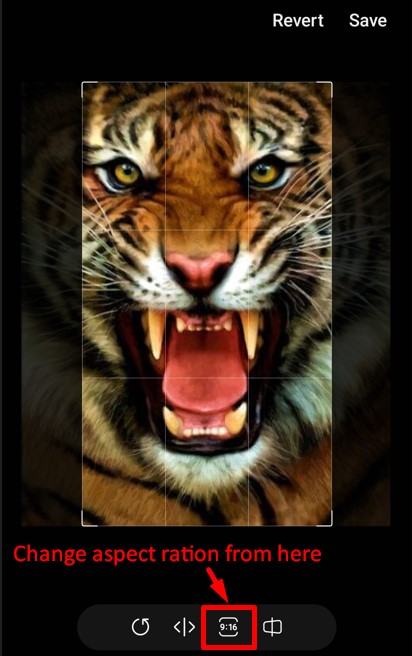
Resizing in your phone’s gallery ensures your photos fit perfectly on Instagram without needing additional apps. But if you want more advanced edits, third-party editing apps might be the way to go. Up next, let’s explore how to resize images using third-party apps!
Also, if you are looking to resize your videos for Instagram, then check out our guide on how to resize videos for Instagram with ease.
5. With a Third-Party Editing App
If you need more control over resizing and editing, third-party apps can help. Apps like Canva, Picsart, Fotor, and Snapseed allow you to resize images for Instagram without cropping while offering additional editing tools to enhance your content.
Here’s how to resize images for Instagram using a third-party editing app:
- Step 1: Download an app like Canva, Picsart, or Fotor from the App Store or Google Play.
- Step 2: Open the app and upload the image you want to resize.
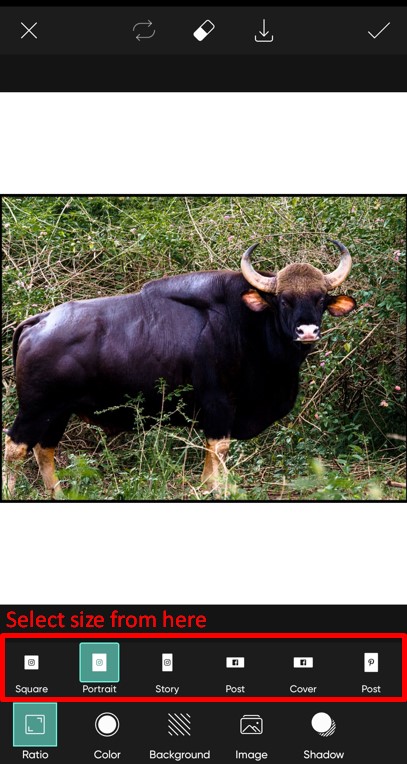
- Step 3: Find the crop or resize tool and select the correct Instagram aspect ratio (4:5 for posts, 16:9 for stories, 1:1 for square posts).
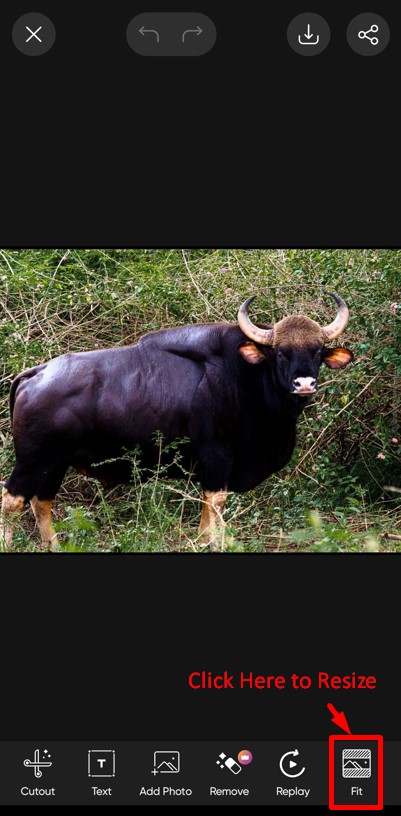
- Step 4: If your image still doesn’t fit, add a border to avoid cropping. Most apps have a background feature to adjust the canvas size.
- Step 5: Save the resized image and upload it to Instagram.
These apps offer more flexibility and allow you to resize, enhance, and optimize your images for Instagram without losing quality. But if you want a faster, AI-powered solution to generate, edit, and resize posts instantly, check out the next method using Predis AI!
Conclusion
Making pictures fit on Instagram without cropping is easier than ever. Now that you know the best resizing methods, it’s time to create stunning Instagram posts without the hassle. Choose the method that works best for you and keep your feed looking sharp, professional, and engaging!
Since we are here, are you looking for something much more revolutionary that will even help you make content? Sign up for Predis.ai today! Manage your social media channels and also improve engagement by designing interactive posts within a few clicks.
FAQs
You can use Instagram’s built-in resize tool while posting. Tap the resize icon (two corner lines) to adjust the image to fit the frame.
You can resize photos for Instagram using Adobe’s resizer, third-party apps like Canva, or AI tools like Predis AI to adjust the aspect ratio without losing quality.
Use Instagram’s resize feature, manually zoom out, or add a border using editing apps to fit the entire image in your post.
Make sure your image is in the recommended aspect ratio (4:5 for posts). If needed, resize using a photo editing app before uploading.