

Explore this content with AI:
Many Facebook advertisers spend hours choosing the right audience — interests, behaviours, lookalikes. But who you exclude is equally important, and far more often neglected.
If your campaigns are generating low-quality leads, high CPCs, or acquisition ads that keep reaching people who already bought from you, the problem is likely an audience you’re unintentionally including. Strategic exclusions sharpen your targeting, lower your cost per conversion, and ensure every impression counts toward a genuinely new outcome.
This guide covers exactly how to exclude audiences in Facebook Ads — including what Meta changed, how exclusions work differently in Advantage+ campaigns, and the tiered framework that keeps exclusions manageable at scale.
Why is it Important to Exclude Irrelevant Audiences from Facebook Ads?
- Not every person who sees your ad is a good fit for it. When you show ads to the wrong people, you waste money, don’t get much response, and get bad leads that won’t turn at all.
- You increase the chances that each image, click, and sale is useful. This improves the relevance score, lowers the cost per click (CPC), and makes better use of the cash.
What Meta Changed?
Before setting up any exclusions, you need to know about a significant change Meta made.
Meta removed Detailed Targeting Exclusions entirely.
Previously, advertisers could exclude users based on specific interests, behaviours, or demographic segments directly inside the Detailed Targeting section — for example, excluding people interested in “discounts” or “competitor brands.” That option is gone from Meta Ads Manager.
What still works in 2026:
| Method | What It Does | Where to Configure |
|---|---|---|
| Custom Audience exclusions | Exclude specific people based on your own Pixel data or CRM lists | Ad set level → Audience → Custom Audiences → Exclude |
| Account-level audience controls | Apply global exclusion rules across every campaign automatically | Business Manager → Advertising Settings |
| Advantage+ exclusions | Configure exclusions for automated campaigns | Account Settings → Advantage+ Shopping Campaigns |
Important: If you edit an existing ad set that relied on Detailed Targeting Exclusions, Meta will automatically remove those exclusions when you save — without warning. Audit any active campaigns that relied on interest-based exclusions before editing them.
Where does Audience Exclusion happen in Facebook Ads?
First, let’s talk about where audience exclusions happen in the Facebook Ads structure. Then, we’ll talk about how to exclude the irrelevant audiences in your Facebook ads.
- There are three stages to Facebook ads: Campaign, Ad Set, and Ad.
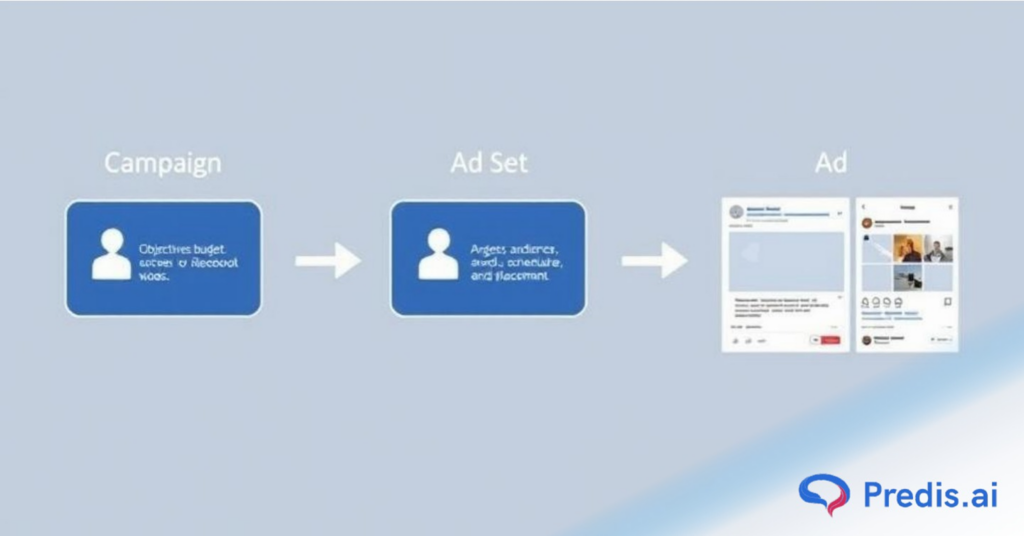
- The best place to ask to exclude a group is at the Ad Set level. This is where you set your budget, plan, placements, and who you want to reach.
- By leaving these users out, you can be sure that the ad creative (which is built at the Ad level) only hits the groups you want it to. It’s like the guardian of your audience because the Ad Set level decides who sees your ad and who doesn’t.
Step-by-Step: How to Exclude Irrelevant Audiences in Facebook Ads Manager?
Let’s now walk through the actual steps to exclude audiences inside Facebook Ads Manager. Whether you’re running a conversion campaign or just boosting a post, these steps apply across all objective types.
1. Facebook Ads Manager
- Open Facebook Ads Manager and Choose Your Campaign. Access your Facebook Ads Manager account.
- Select the campaign in which you wish to apply exclusions. If you have not yet created one, click on “Create” and choose your objective (such as Traffic, Conversions, or Leads).
2. Proceed to the Ad Set Level
- Within your selected campaign, navigate to the Ad Set tab. This is the place where true targeting excellence unfolds.
3. Navigate to the ‘Audience’ Section
- After entering the Ad Set editor, navigate down to the section titled Audience. This section presents options for creating or selecting a Custom Audience, specifying locations, age range, gender, and detailed targeting criteria such as interests and behaviors.
4. Click ‘Exclude’ Under Custom Audiences
- You can exclude custom audiences, such as website visitors, email subscribers, or app users, in this section.
- Press the “Exclude” button and choose the audiences you wish to omit.
- For instance, you may choose to omit: Visitors to your website who have made a purchase or individuals who spent less than 5 seconds on your landing page, or if you are conducting a campaign to acquire new customers, consider your existing customers as well.
5. Use Detailed Targeting to Exclude Interests and Behaviors
You cannot exclude an audience that doesn’t exist yet. If you don’t have saved custom audiences ready, follow these steps first.
For Pixel-based exclusions (website purchasers, cart abandoners, etc.):
- Go to Meta Ads Manager → Audiences → Create Audience → Custom Audience → Website
- Select your Pixel and choose the relevant event: Purchase (for buyer exclusions), AddToCart (for cart abandoner exclusions), or ViewContent (for product viewers)
- Set your lookback window: 30 days for recent buyer exclusion in acquisition campaigns; 180 days (the maximum) for evergreen purchaser lists
- Name clearly — e.g.
CA - Purchasers - 30DorCA - Purchasers - 180D - Click Create Audience and allow 24–48 hours to populate
For CRM-based exclusions (existing customers, subscribers, etc.):
- Go to Audiences → Create Audience → Custom Audience → Customer List
- Upload a CSV with email addresses and/or phone numbers from your CRM or Shopify
- Meta hashes the data on upload — raw customer data is not stored
- Name clearly — e.g.
CA - Customer List - All Time
Once your custom audience exists, return to your ad set, scroll to the Audience section, click Exclude inside the Custom Audiences field, and select the relevant audience.
Save Audience for Future Use: Step 6
- Once you have configured your exclusions, you may proceed to click Save This Audience.
- This simplifies the process of utilizing the same targeted audience in upcoming campaigns without the need to start from scratch.
Advantage+ Campaigns: Exclusions Work Differently
If you’re running Advantage+ Shopping Campaigns (ASC) or Advantage+ Audience campaigns — which Meta now pushes as the default in many campaign creation flows — your exclusion setup is fundamentally different from standard manual campaigns.
In Advantage+ campaigns, you cannot add exclusions at the ad set level. The standard Exclude button in the Audience section is not available. This means that without additional configuration, Meta’s algorithm will freely retarget your existing customers with acquisition ads — inflating your reported ROAS while generating zero incremental revenue from new buyers.
How to Configure Exclusions for Advantage+ Campaigns
Step 1: Go to your Meta Business Manager
Step 2: Navigate to Advertising Settings (left column)
Step 3: Find the Advantage+ Shopping Campaigns section
Step 4: Set your Existing Customer Budget Cap
- Set to 0% for pure prospecting campaigns (no spend on existing customers)
- Set to 10–20% if you want some retargeting within the same campaign structure
Step 5: Upload your customer list here. Meta uses this as the source of truth to define who counts as an “existing customer” for ASC purposes.
Why this matters: Without this setting, ASC campaigns naturally drift toward retargeting past purchasers — people who are easy for the algorithm to convert because they already know and trust your brand. This makes your CPA look great and your ROAS look strong, while your new customer acquisition cost quietly climbs.
Note: Account-level controls (location restrictions, age minimums, employee exclusions) also apply to Advantage+ campaigns and are configured in the same Advertising Settings section.
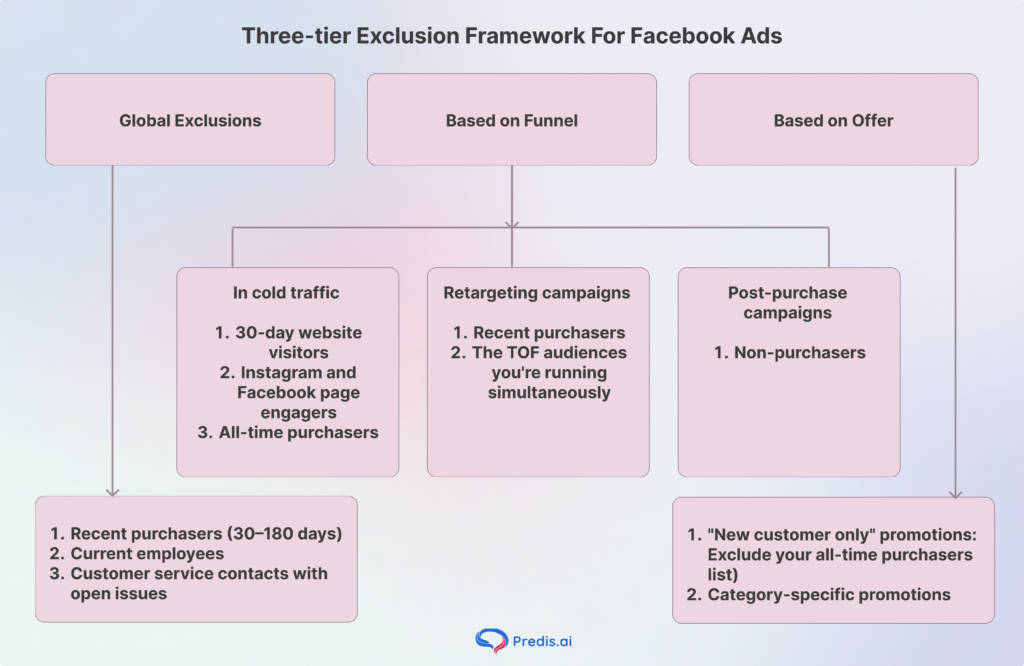
Most Irrelevant Audiences You Should Exclude in Facebook Ads
Not sure who to exclude? Here’s a list of commonly irrelevant audiences that could be costing you valuable ad dollars:
Advanced Exclusion Strategies (Pro Tips)
Once you’ve mastered the basics, you can layer advanced strategies to get even more granular with your audience targeting:
- Use Facebook Pixel and Events: Create custom audiences of people who triggered certain events (like Add to Cart but didn’t Purchase) and exclude them if necessary.
- Exclude Lookalike Overlap: If you’re using multiple Lookalike Audiences, ensure they don’t overlap by excluding one from the other.
- Exclude Low-Value Traffic: Based on behavior, device usage, or session duration.
- Run A/B Tests with Exclusions: Test one version with exclusions and one without to see the impact clearly.
Common Mistakes to Avoid While Excluding Audiences
Even though audience exclusion is powerful, it’s easy to misuse it if you’re not careful. Here are common pitfalls:
- Excluding Too Broadly: You might shrink your audience too much, affecting delivery.
- Forgetting to Update Exclusions: If your audience behavior changes, your exclusions should too.
- Not Checking for Overlap: Use Facebook’s Audience Overlap tool to ensure you’re not doubling efforts.
- Excluding Based on Assumptions: Always use data, not gut feeling.
Tools to Help You Analyze and Exclude the Right Audiences
Before applying exclusions blindly, use these tools to guide your decisions:
- Facebook Audience Insights: To understand who’s engaging with your page and ads. For teams handling multiple social channels, a unified social inbox can make customer conversations easier to manage from one place.
- Google Analytics: Identify users with high bounce rates or low time on site.
- Facebook Pixel: Segment users by behavior like Add to Cart, View Content, etc.
- Hotjar or Crazy Egg: Analyze where users drop off or spend time on your site.
Sell More via Facebook 💰
TRY FOR FREE
Final Checklist Before Launching Your Ad
Use this quick checklist to make sure your Facebook ad targeting is precise:
- Have I excluded past purchasers where necessary?
- Did I remove irrelevant interests and behaviors?
- Is my Facebook Pixel collecting and segmenting user data?
- Have I saved my audience setup for future use?
- Did I check audience overlap to avoid duplication?
Conclusion
Audience exclusions are one of the highest-leverage settings in your Facebook Ads account. The logic is simple: every dollar spent reaching someone who already converted — or who will never convert — is a dollar that isn’t finding a new customer.
The method has now changed. Detailed Targeting Exclusions are gone. The tools that remain — custom audience exclusions at the ad set level and account-level controls — are actually more precise, because they’re built from your own first-party data rather than Meta’s interest estimates.
Apply exclusions systematically using the three-tier framework: global rules at the account level, funnel-stage exclusions at the ad set level, and offer-specific exclusions for individual campaigns. Review your lists monthly. And configure Advantage+ exclusions in Account Settings before launching any automated campaign.
Ready to create the Facebook ads worth showing to your refined audience? Predis.ai’s Facebook Ad Maker generates platform-optimised ad creatives from a product link or prompt — so you spend less time on production and more time on the targeting decisions that actually move the needle.
Create your Facebook Ads with Predis.ai →
FAQs
Audience exclusion is the process of preventing specific user groups from seeing your ads. It stops Meta from serving impressions to people who have already converted, are irrelevant to your campaign goal, or whose inclusion would waste budget.
Yes. Create a Custom Audience using the Pixel Purchase event (Website → Purchase event → 30–180-day window), or upload your customer list as a Customer List audience. Then apply it as an exclusion at the ad set level.
Done correctly, no. Done too broadly, yes. Custom audience exclusions based on your own data (actual purchasers, actual CRM contacts) don’t carry this risk — they remove people who can’t convert, not people who might.
Related Content:
- How to Create a Facebook Ads Funnel?