

Explore this content with AI:
Around 700 people in the US search for “nano banana video” every month, according to Ahrefs. Here’s the catch: Nano Banana can’t make video. Google’s own model page lists the latest version’s output as image and text, nothing else.
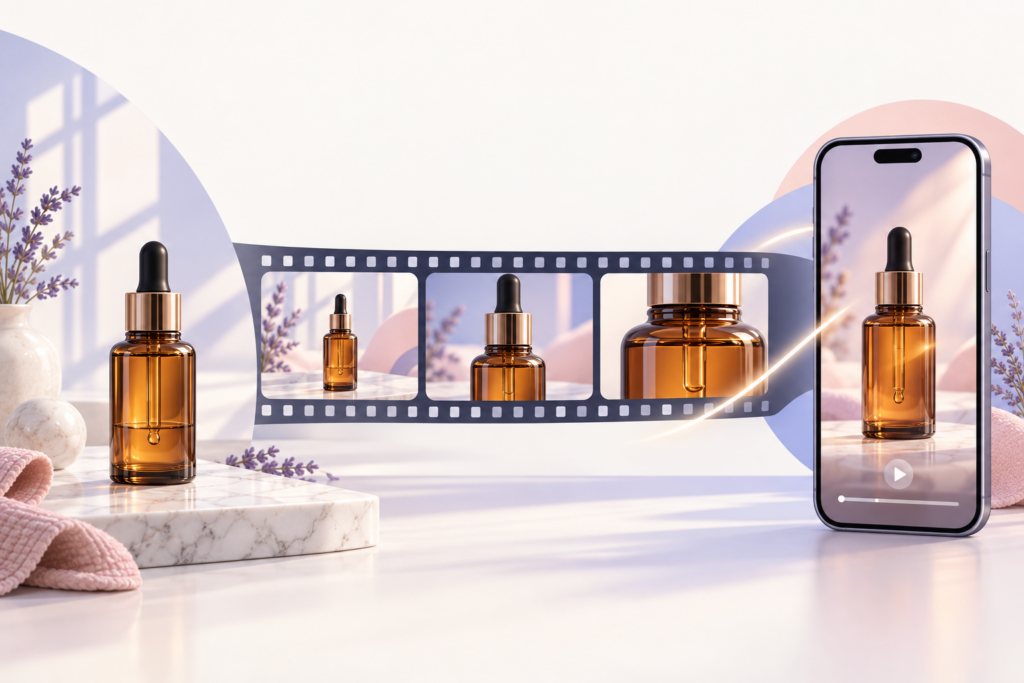
That doesn’t make the search pointless. Nano Banana is very good at the part that decides whether a product video looks real: the frames. The motion comes from a second model. Get the handoff right and your product photos turn into short clips where the label stays readable and the bottle keeps its shape.
Below is that handoff, step by step, built for product shots.
Can Nano Banana make video?
No. Nano Banana is Google’s image model, and every version so far makes still images. So a “nano banana video” usually means one of two things. Either it’s a Nano Banana image animated by a video model, or it’s Gemini Omni, which Google calls like Nano Banana, but for video.
Google’s lineup, as of November 2026:
| Model | What it makes | Notes |
|---|---|---|
| Nano Banana 2.1 | Images | Fast and low cost. Out October 6, 2026. |
| Nano Banana Pro | Images | More detail. Slower and costlier. |
| Gemini Omni 1.1 Flash | Video | Takes your images as references. Out August 27, 2026. |
| Veo 3.1 | Video | Google’s other video model. Makes sound too. |
Be careful with sites that sell a “Nano Banana video generator.” Nano Banana only makes images. So if a site hands you a video, a different model made the motion. Find out which one before you pay, since that model decides how your product moves.
Step 1: Start from a real product photo
The fastest way to get a fake-looking product video is to let a model invent your product. Packaging has small details, like the curve of a cap, the spacing of the logo, and the exact shade of the label. A model guessing at those details gets them slightly wrong. Viewers notice.
So start from a real photo. Shoot your product on a plain background in soft, even light, fill most of the frame with it, and keep the label facing the camera. A phone is fine if the shot is sharp.
Then use Nano Banana to edit, not invent. Ask it to place the bottle on a marble counter, add morning window light, or put a hand around it. Google’s model page says Nano Banana 2.1 improved consistency across editing turns and text rendering, which matters when the product has to look the same in every frame.
Before you move on, zoom to 100% on every edit and read the label. A still that fails up close will fail in motion, too, and fixing it now costs a lot less.
Step 2: Build a frame set, not one hero image
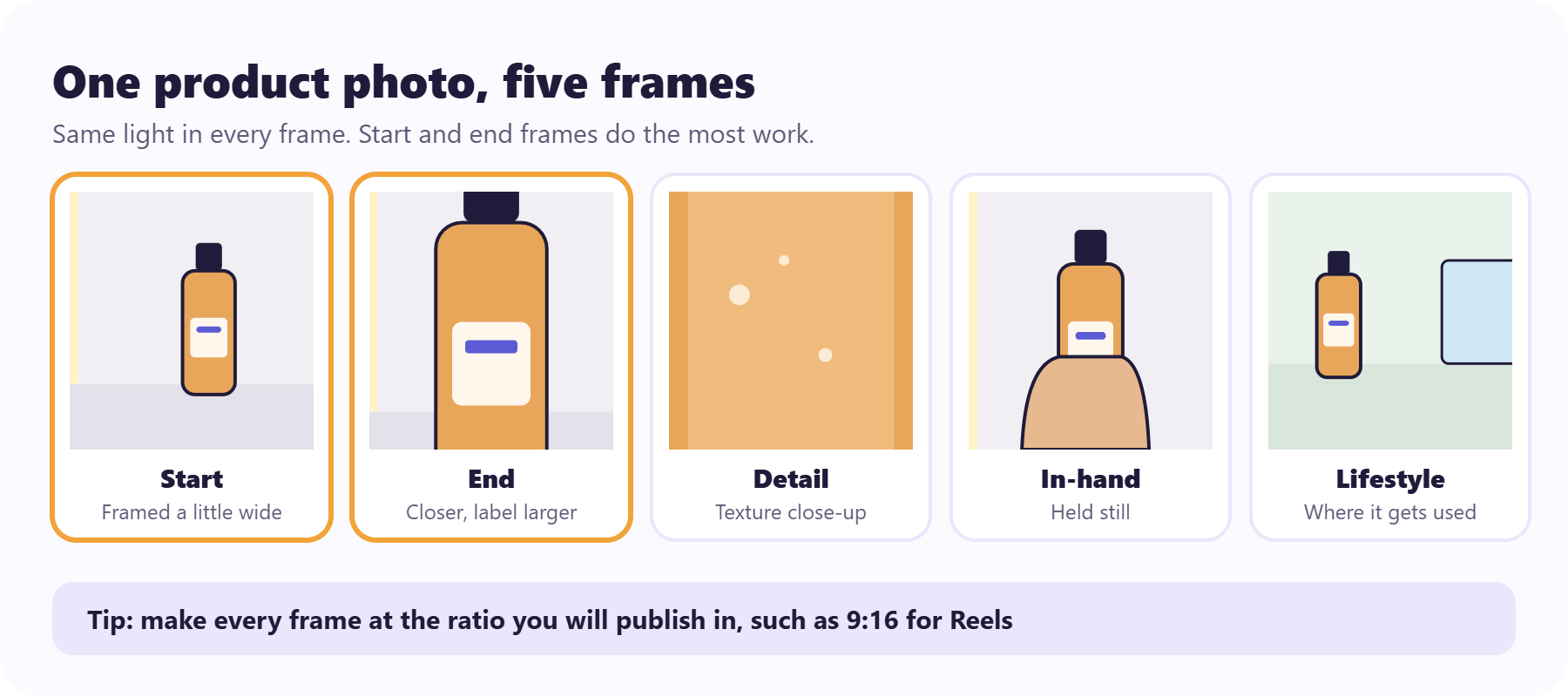
One image gives a video model one idea. A small set gives it a plan. For each product, make 4 or 5 frames in Nano Banana from the same original photo:
- Start frame: the product on its surface, framed a little wide.
- End frame: the same scene, closer, with the label filling more of the frame.
- Detail frame: a close-up of texture, like the pump, the stitching, or the condensation.
- In-hand frame: a hand holding or using the product.
- Lifestyle frame: the product in the room where it actually gets used.
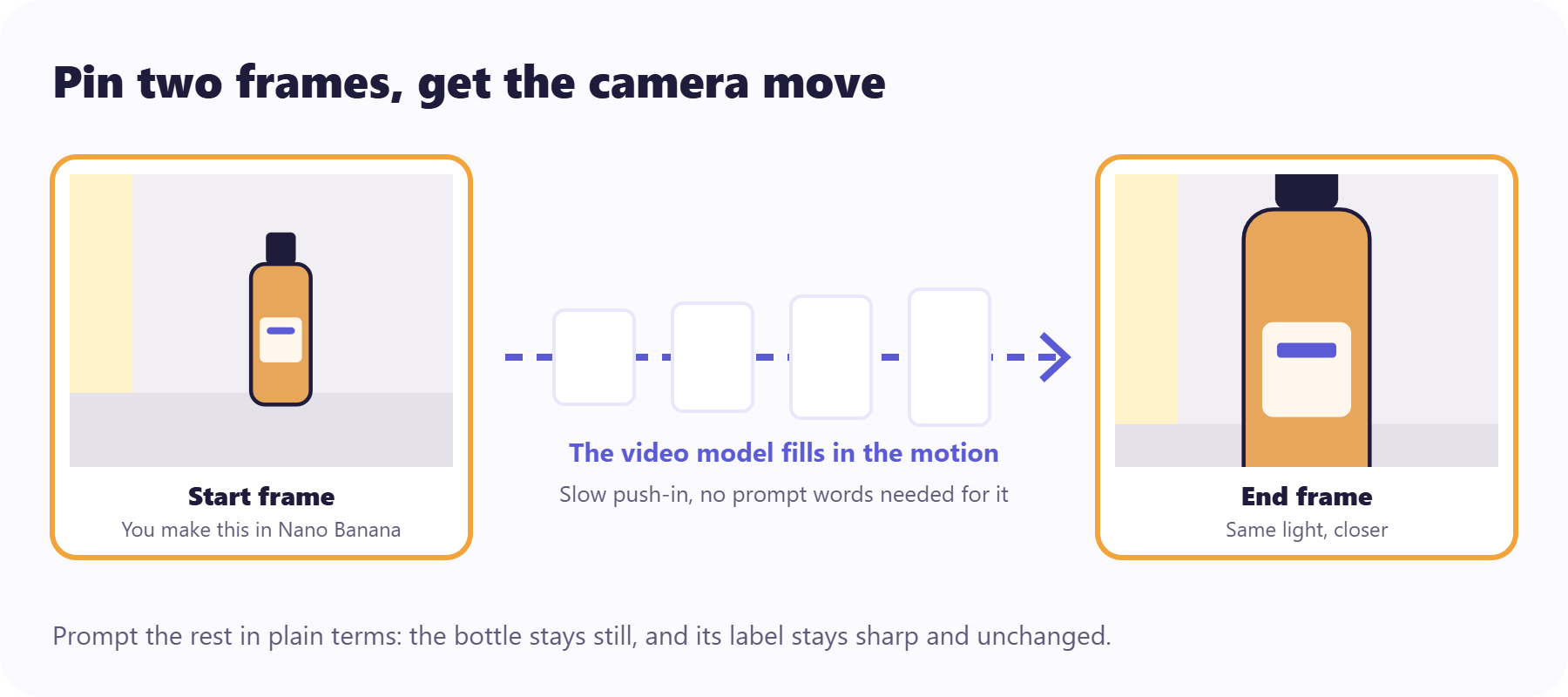
The start and end frames do the most work. Gemini Omni 1.1 Flash lets you pin a starting frame and an ending frame for a shot, and the model fills in the movement between them. If the end frame is closer and slightly to the right, you get a slow push-in with a gentle drift, and you didn’t have to describe either one.
Make every frame at the ratio you’ll publish in, such as vertical 9:16 for Reels and TikTok (and check the Instagram Reel length limits before you plan the shots). Cropping a finished clip later cuts off the framing you planned.
Keep the light identical across the set. If the start frame has window light from the left and the end frame has it from the right, the model has to invent a lighting change halfway through the shot.
Start from an ad that already works
Use a reference ad as your input instead of a blank prompt.
Step 3: Choose where the motion happens
Gemini Omni is the natural next step if you’re already using Nano Banana, and you can reach it in a few places. (If you’re weighing Hailuo instead, see our guide to realistic video in Hailuo AI.)
Google Flow is the most hands-on route, and Omni 1.1 Flash is available there for Google AI Plus, Pro, and Ultra subscribers. Google documents the start-and-end-frame controls for its API, so check Flow’s shot settings for the same option before you plan around it.
The Gemini app works for quick tests and offers scene extension to the same subscribers. When Omni launched in May, Google also rolled it out at no cost on YouTube Shorts and the YouTube Create app, which is a good free place to experiment. Developers can call it through the Gemini API in Google AI Studio.
Omni clips are short, roughly 3 to 10 seconds each, and you can extend a scene from where it left off. For a product ad, that’s plenty. Three 4-second shots cut together usually beat one 12-second shot, because each new shot gives errors less time to build up.
Other video tools accept Nano Banana images too, as start frames or references, including image-to-video makers built for social posts. The frame set from Step 2 works the same way in all of them.
Step 4: Write one camera move per shot
Product shots look real when the camera does one simple thing and the product does almost nothing. These moves tend to hold up:
- Slow turntable: a quarter turn, no more.
- Push-in to the label: the camera eases closer until the label fills the frame and the background softens behind it.
- Light sweep: a soft band of light glides across the product.
- Hand lifts into frame: a hand picks the product up and holds it still, which works best when the product is easy to grip.
- Pour or splash: drinks and food only.
Write the prompt around one of those moves, and say what stays fixed. For example: “Slow push-in toward the serum bottle on the marble counter. Soft window light from the left. The bottle stays still, and its label stays sharp and unchanged. 5 seconds.”
Notice the last part. Describing what should stay the same, in plain positive terms, gives the model a clear target. “Don’t change the label” puts the word change in the prompt, which is the opposite of what you want.
Skip the quality tags, too. “8K, cinematic, photorealistic” adds nothing your frames don’t already show.
Three more prompts you can adapt:
- Sneaker: “Slow quarter turn of the white sneaker on a concrete step, morning light from the right, laces still. 4 seconds.”
- Iced coffee: “Close, slow pour of milk into the iced coffee glass on a wooden table, soft window light from the left. 5 seconds.”
- Ring: “A soft band of light sweeps left to right across the gold ring on a linen cloth. The ring stays still. 4 seconds.”
Build your product motion prompts
Pick your product and one camera move. You get two image-edit prompts for your start and end frames, plus the video prompt that animates them.
1. Start frame
In your image editor (Nano Banana), with your product photo attached
Edit this photo: The amber glass serum bottle on a white marble counter. Soft window light from the left. Keep the product exactly as it appears in the photo, with its label sharp and readable. Frame it a little wide, with space around the product.
2. End frame
In the same image chat, after the start frame
Edit the start frame: same scene and light, but closer, so the label fills about half the frame and the background softens.
3. Video prompt
In your video tool, with both frames pinned as start and end
Slow push-in toward the amber glass serum bottle until the label fills the frame. Soft window light from the left. The amber glass serum bottle keeps its exact shape, and its label stays sharp and unchanged. 5 seconds.
This combination tends to hold up. Draft it small first.
Showing an example for a serum bottle. If changing the options doesn’t update it, your site is blocking this tool’s script.
Step 5: Draft at 360p, upscale the keeper
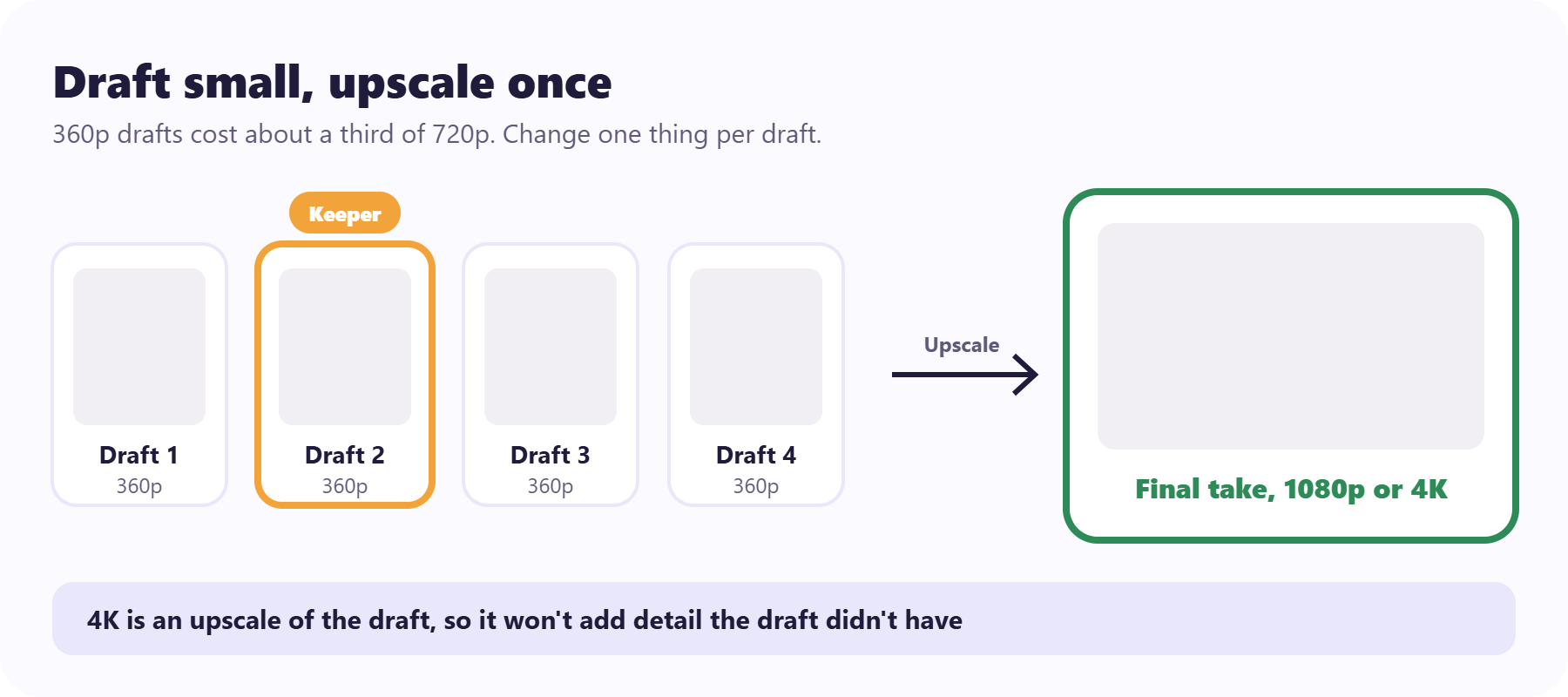
Omni 1.1 Flash renders test drafts at 360p for about a third of the cost of 720p, then lets you upscale a finished take to 1080p or 4K. Use that.
Run 3 or 4 drafts per shot at the low setting, and change one thing each time: the camera move, the light, or the length. Once a draft has the right motion, upscale only that one.
For a 12-second ad, cut three 4-second shots together: the start-to-end push-in, the detail shot, and the in-hand shot. Add your headline and price in the editor, over the clip, rather than asking the video model to write them. These product advertisement video examples show other ways to order the shots. Keep in mind that the 4K option is an upscale of what the model generated, not a native 4K render, so it won't add detail the draft didn't have.
Which products animate well, and which don't
Not every product makes an easy nano banana video. Simple, solid shapes do best: bottles, jars, boxes, shoes, and mugs. They keep their outline as the camera moves, and a quarter turn reveals new sides without anything bending.
Some products need more care. Glass and jewelry reflect the room, so their highlights can shift in strange ways. Packaging with lots of small text tends to blur when it turns. Fabric that drapes, cables that coil, and anything a hand has to open or twist give the model more chances to get the physics wrong.
For those, lean on the safer moves. A light sweep across a ring, or a push-in toward a folded shirt, asks less of the model than spinning it. Keep tricky products still and let the camera or the light do the moving.
Step 6: Check the label before you publish
Labels are where product videos give themselves away. Letters wobble, a logo melts for a few frames, or a cap changes color between the start and the end. These are the same tells that give away most AI video. Scrub through each clip slowly before you use it, and pause on any frame where the product turns or a hand touches it.
If the label still drifts, you have three options. Use a shot where the label faces away and add your brand in the edit. Add small text, prices, and claims as an overlay in your editor, which is safer than asking any model to keep fine print sharp. Or fix only the frames that broke. Predis.ai lets you edit a single frame of a video ad and keep the rest, so the shots that worked stay put.
Fix the frame, not the whole video
Edit the one shot that drifted and keep the ones that worked.
Label it as AI
Every video made with Gemini Omni carries Google's invisible SynthID watermark, and anyone can check it through the Gemini app, Chrome, or Google Search. So treat disclosure as a given.
Turn on the AI label when you post: TikTok asks creators to label realistic AI content, and Meta may require its "AI info" label too.
Good frames make good motion
The useful way to think about a Nano Banana video is as two jobs. Nano Banana makes the product look right. A video model makes it move. Most of the realism is decided in the first job, before any motion exists.
Then let the results pick the winner. Make 2 or 3 versions, each with a different camera move, and see which one earns attention. Predis.ai's insights show how each variant performed after it ran, so your winner is something you found rather than something you guessed.
Make the variants, then find your winner
Make ads that look like your brand and see which one earned attention.
FAQs
No. Every Nano Banana model, including Nano Banana 2.1 and Nano Banana Pro, makes and edits still images. To turn those images into video, use them as frames or references in a video model like Gemini Omni or Veo.
When Gemini Omni launched in May 2026, Google rolled it out at no cost on YouTube Shorts and the YouTube Create app. Full access in Google Flow and the Gemini app comes with a Google AI Plus, Pro, or Ultra plan. Availability changes, so check the app before you plan around it.
Nano Banana makes and edits images. Gemini Omni makes and edits video, and it can take images, video, and text as references. Google describes Omni as being like Nano Banana, but for video.
Nano Banana 2.1 is faster and cheaper, and Google says it improved text rendering and consistency. In The Decoder's side-by-side test, Nano Banana Pro still looked more natural in color and proportion. Try your hero frame in both and keep whichever renders your packaging more faithfully.
Google's Nano Banana models only output images, so a site that returns a video is running some other model for the motion. That isn't always bad, but look for a page that names the video model, explains its limits, and shows you the export before you pay.
You may also like: