

Explore this content with AI:
In Wyzowl’s 2026 State of Video Marketing survey, 71% of marketers said videos between 30 seconds and 2 minutes work best. Most AI video models still hand you 8 seconds. Fifteen if you’re lucky.
Seedance 2.5, the latest Seedance model from ByteDance, generates up to 30 seconds in one pass. That’s room for a hook, a demo, a close-up and a closing frame in a single take. It’s also 30 seconds for the model to wander off your brief, so your Seedance 2.5 prompt has to carry a lot more direction than it used to.
That’s why this Seedance 2.5 prompt guide puts the prompts first. Copy one, swap in your product and generate. Scroll down when you want to know why each line is there, or how to cut a template down for Seedance 2.0.
What goes into a good Seedance 2.5 prompt? For a product clip, a strong Seedance 2.5 prompt does five jobs. It gives each reference image one narrow role, splits the clip into timestamped beats with no gaps and ties every camera move to an action. It also says what the viewer should hear, then ends with a short line that protects your label.
3 Seedance 2.5 Prompts for Product Clips (Copy and Paste)
These Seedance prompt examples are the core of this Seedance 2.5 prompt guide, and all three follow the same 30-second beat plan, which is broken down further below. Swap in your product, setting and sounds, and delete any line your scene doesn’t need.
Template 1: 30-second hero reveal (16:9)
The safest place to start. It follows the beat plan second for second and keeps your product as the only star of the clip.
Template 2: 30-second in-use demo (9:16)
Built for Reels and TikTok, where the product has to do something within the first few seconds or people keep scrolling.
Vertical 9:16, bright lifestyle realism, light handheld feel.

References: @Image 1 defines the [product] exactly. @Video 1 is a reference for handheld camera movement only; do not copy its subject or location.

0-4s: Close-up of [the problem the product solves].
4-12s: A person in their [age range] in a [home setting] picks up the [product] and starts using it. Camera at chest height.
12-22s: The product working in one continuous action: [grip, motion, result, step by step].
22-27s: Close-up of the result, with the product resting in frame beside it.
27-30s: The person sets the product down and steps out of frame. Hold on the product.

Audio: Natural room sound, [action sounds]. No BGM.
Constraints: Product shape and label stay identical. Natural hands. No subtitles.
Template 3: 20-second UGC-style review (9:16)
For creator-style clips, the performance matters more than the camera. This one locks the camera down and spends its words on delivery.
Vertical 9:16, 20 seconds, realistic smartphone footage, natural exposure, no color grade.

References: @Image 1 defines the [product] exactly. @Image 2 defines the presenter's face and hair only.

Camera: Arm's-length selfie framing with slight natural hand movement. No dolly, no orbit.

0-6s: The presenter holds the [product] next to her face and looks into the lens. Casual, slightly skeptical: "[First line, under 10 words]."
6-14s: She turns the product toward camera and points to [feature]. "[Second line]."
14-20s: She lowers it, smiles and looks back at the lens. "[Short closing line]."

Audio: Close phone-mic sound, faint kitchen ambience. No music.
Constraints: No subtitles, no logo overlays, no beauty filter, no studio lighting.
Keep it to one spoken line per beat. Three lines crammed into six seconds tend to overlap or sound rushed.
Would you rather skip the prompt for this format? Predis.ai’s UGC video generator lets you pick an avatar and drop in a script instead. And if you’re still on the older model, there’s a 15-second version in the Seedance 2.0 prompt section.
Turn a product link into a video
Paste a link or photo and get a draft with script, voiceover and captions.
Plan the 30 Seconds Before You Edit a Prompt
Every template above starts from a stopwatch, not a formula.
ByteDance’s guidance for 30-second video recommends organizing events into stages with a clear end state, according to Luma’s walkthrough of the prompting guide. Luma also suggests about three or four meaningful beats per 15 seconds as a field-tested pace. So a 30-second clip holds roughly six to eight beats, and fewer is usually safer.
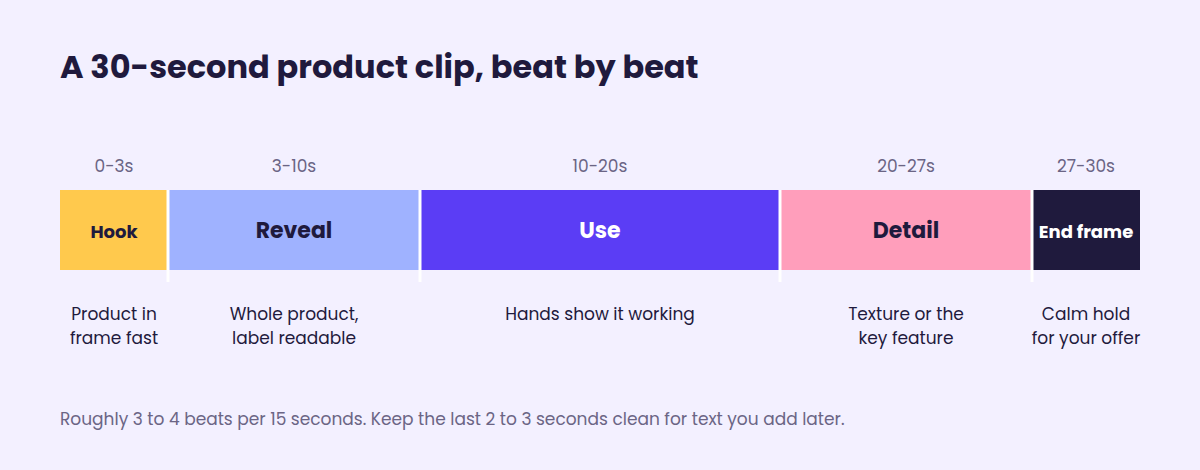
Here’s the length budget the templates use. It fits most e-commerce product clips:
| Seconds | Beat | What the viewer should get |
|---|---|---|
| 0-3s | Hook | The product, or the problem it fixes, in frame right away |
| 3-10s | Reveal | A clean look at the whole product, label readable |
| 10-20s | Use | A hand, a face or a room showing the product working |
| 20-27s | Detail | Texture, a close-up or the feature that justifies the price |
| 27-30s | End frame | A steady hold with empty space for your offer or logo |
That last beat is the one people skip. Keep the final 2 to 3 seconds calm and uncluttered, then add your text, price and call to action in an editor afterward, where you control the exact wording and font.
Making this for Instagram Reels or TikTok? Generate in 9:16 from the start rather than cropping a 16:9 render later. Cropping can push your product to the edge of the frame, or out of it.
How to Write Your Own Seedance 2.5 Prompts in 6 Steps
The usual rules for prompting any AI video generator still apply. Be specific, and describe motion instead of a still image. This part of the Seedance 2.5 prompting guide covers the habits that matter most once your product has to survive 30 seconds.
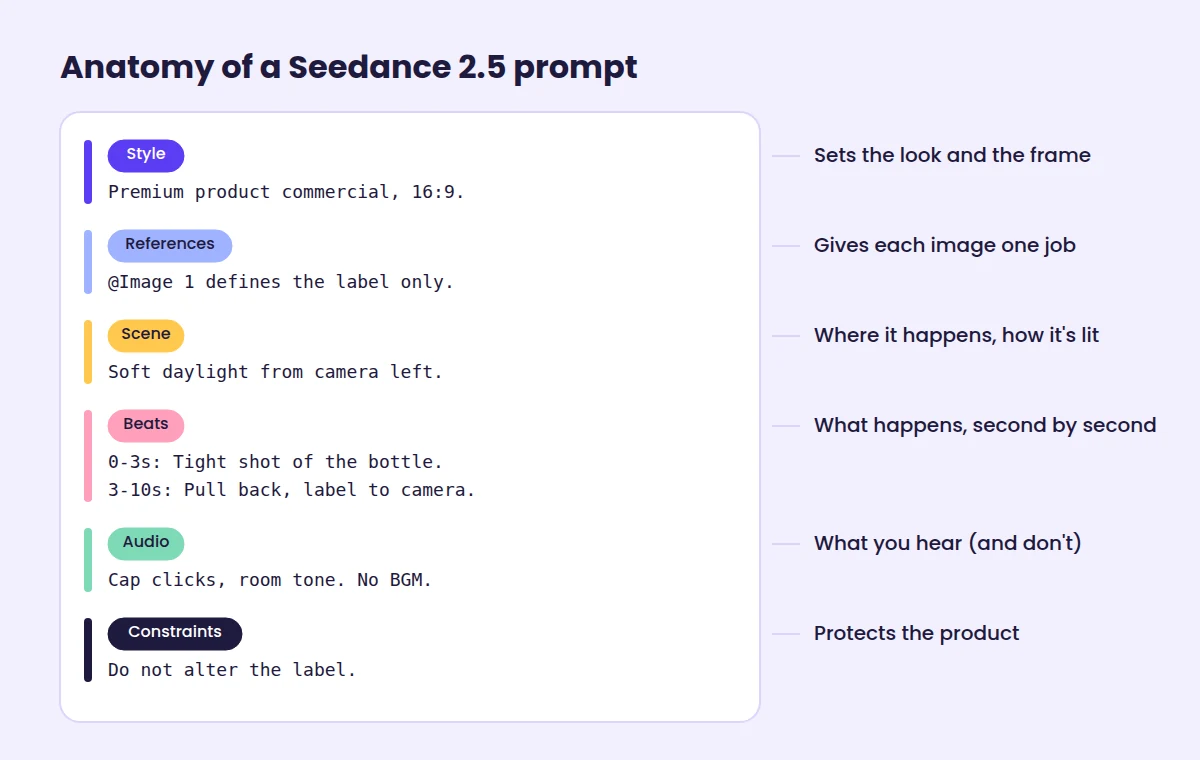
Step 1: Pick the task before you write
Every request gets sorted into a task: text-to-video, reference-to-video, editing, extension, or first and last frame. Rendley’s walkthrough of BytePlus’s official prompt guide explains that your wording influences that sorting. If a reference prompt reads like an edit (“replace the background”), the API can treat it as one and reject settings that don’t apply.
For a brand-new product clip, you’ll usually want reference-to-video. Save extension for when you already have a clip you like and need what comes next.
Step 2: Give your product reference one job
Uploading a product photo isn’t enough. That photo also carries a background, a lighting setup and a camera angle, and the model has to guess which parts you care about. Spell it out:
@Image 1 defines the bottle shape, label, logo and cap color only. Do not copy its white studio background or lighting.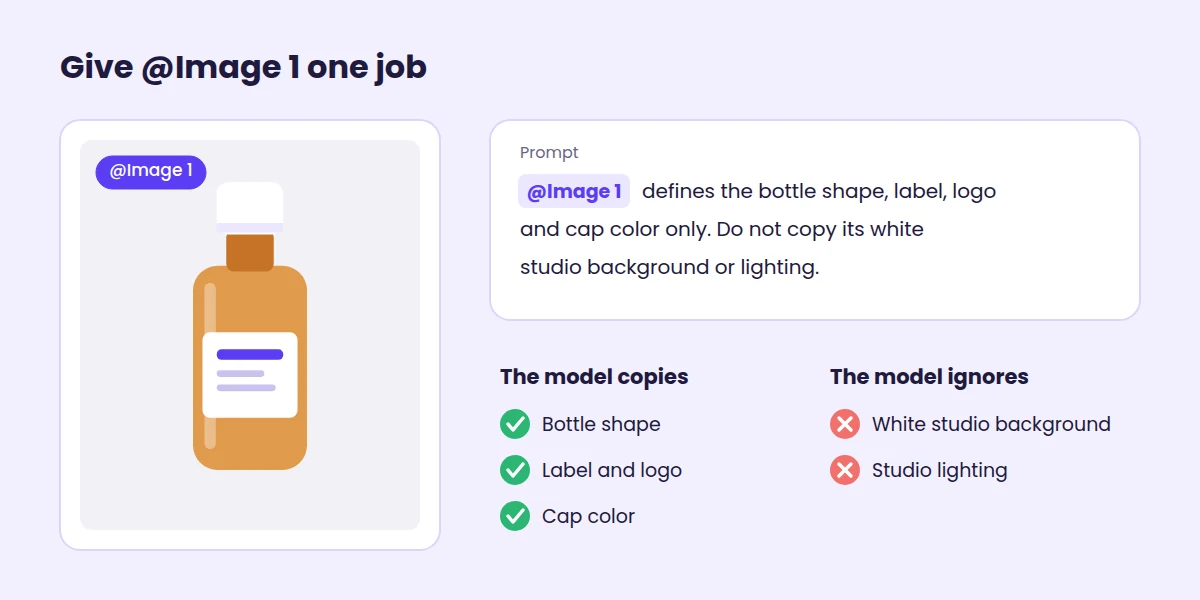
More references aren’t automatically better, either. BytePlus supports 30 images, but its guide says one to eight subjects is generally more stable. Two or three clean shots of your product (front, side and a label close-up) usually beat dumping your whole camera roll in.
One more thing. Don’t type names or labels onto your reference images. Bind each image to its role in the prompt text instead, because burned-in labels can confuse the model or get copied into the frame.
Step 3: Write timestamped beats with no gaps
Take your length budget and turn it into timestamps: 0-3s, 3-10s, 10-20s and so on. Keep the intervals continuous.
According to the BytePlus guidance, a stretch with too little action gets filled with improvisation. A stretch with too much gets extra cuts or dropped beats. Neither is what you want for a product.
You aren’t limited to ranges, either. A single point works, and so does relative timing (“After 3 seconds, a hand enters from the right”).
0-3s: Tight shot of the [product] on [surface].
3-10s: Pull back. Full product centered, label facing camera.
At the 12-second mark, the cap clicks open.
Step 4: Tie each camera move to something that happens
“Slow orbit” on its own leaves the model guessing when to start. A trigger fixes that:
As the hand lifts the jar, the camera begins a slow orbit.One move per beat is plenty. Standard film terms work fine: push in, pull out, orbit, tracking shot, handheld, macro.
Step 5: Direct the sound, or switch it off
Audio comes out of the same pass as the picture, so say what you want to hear. Product clips usually sound best with small physical sounds, like a cap twisting or glass touching marble.
Plain language is enough. The official guide doesn’t document any special bracket syntax for audio, and its own examples use lines like the one below. Planning to add licensed music later? Ask for no background music so the generated track stays clean, and switch off subtitles unless you want the model’s captions.
No BGM; generate only environmental sounds and action sounds. No subtitles.Step 6: Close with a short constraints line
There’s no dedicated negative-prompt field in the Seedance API, as Kapwing points out, so exclusions go in the prompt itself.
Keep that line short and aimed at problems you’ve actually seen. If the label warped last time, protect the label. A 40-item list of “no” just adds noise.
Constraints: Do not alter or rewrite the label. No extra copies of the product. No on-screen text.Make product ads that look like your brand
Static, video and UGC ads from one product page, before you spend on media. 3-day trial, card required.
Seedance 2.0 Prompt Guide: Cutting These Prompts to 15 Seconds
Plenty of platforms still default to Seedance 2.0, and most Seedance 2.0 prompts you’ll find online were written for shorter, simpler clips. Everything in this Seedance 2.5 prompt guide carries over. You just have less room to work with.
Seedance 2.0 workflows run 4 to 15 seconds with about a dozen reference files, according to Topview’s comparison. At Luma’s pace of three or four beats per 15 seconds, that’s half the beat plan above.
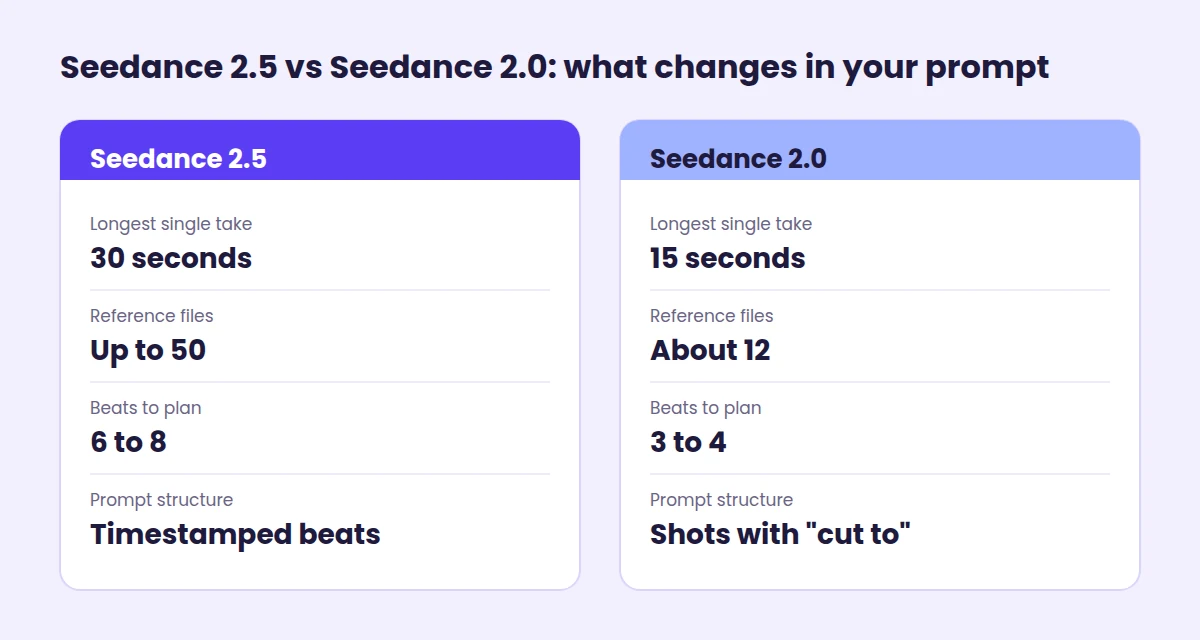
Three changes turn a 2.5 template into a solid Seedance 2.0 prompt:
- Cut to four beats. Keep the hook, one product moment, one close-up and the end frame. The demo beat is usually the first to go.
- Use two or three references at most. A front shot and a label close-up cover most products.
- Write it as shots in order. fal’s Seedance 2.0 guide recommends stacking shots with “cut to” cues, which keeps a short clip from blurring its beats together.
Template 4: 15-second product reveal for Seedance 2.0 (16:9)
Premium product commercial, photorealistic, warm natural light. 16:9, 15 seconds.

References: @Image 1 defines the [product] shape, label, logo and colors exactly. Do not copy its background or lighting.

Shot 1: Tight shot of the [product] on [surface] as a strip of light slides across the label.
Cut to Shot 2: A hand enters from the right, lifts the [product] and turns it slowly toward camera. Slow push in.
Cut to Shot 3: Macro close-up of [key detail].
Cut to Shot 4: The [product] back on the surface, label facing camera, empty space on the right. Hold.

Audio: [Small action sounds], quiet room tone. No BGM. No subtitles.
Constraints: Do not alter the label. No extra copies of the product. No on-screen text.
Need something longer on 2.0? Generate two 15-second takes with the same references and the same product description, then join them in an editor.
Common Seedance Prompt Mistakes on Product Clips
Most Seedance prompts that fail on product clips go wrong in the same few ways, and nearly all of them trace back to one vague line.
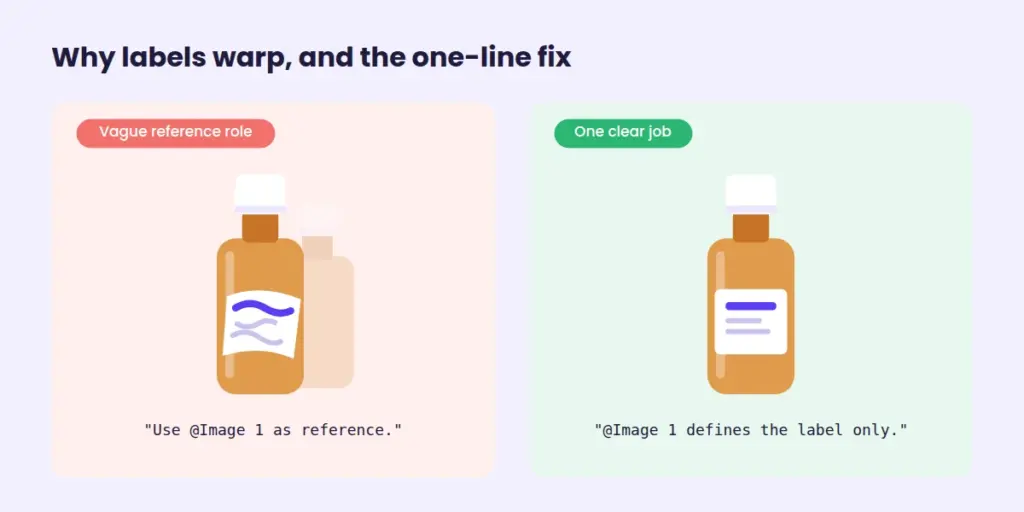
| What went wrong | Likely cause | Fix |
|---|---|---|
| Label text warps or changes | Reference role too vague | Name exactly what @Image 1 controls and add one constraint protecting the label |
| A second bottle appears | Background details in the reference | Add “Do not copy background” and “No extra copies of the product” |
| Beats run together or get skipped | Too much action per interval | Fewer beats, wider intervals and a clear end state |
| Music buries the product sounds | Audio left undirected | “No BGM; generate only action sounds” |
| Random captions show up | Subtitles not switched off | Add “No subtitles” |
| Product looks different after extending | New prompt re-describes it | Reuse the exact same product description and references |
And check every frame before you post. Rendley suggests treating “do not alter the original images” as a request, not a promise. So look at the packshot, logo and label yourself.
What Seedance 2.5 Changed for Product Videos
ByteDance’s Seed team launched Seedance 2.5 on July 31, 2026, according to its official launch post. The headline number is length: single-pass generation went from 15 seconds to 30, with sound and picture generated together.
For a product clip, three other upgrades matter almost as much:
- Bigger reference budget. You can attach up to 30 images, 10 video clips and 10 audio clips in one generation. That’s enough for every angle of your packaging plus a motion reference and a voice sample, with room to spare.
- Timestamp control. You can tell the model what happens in a specific window of the clip. After generation, you can also edit one segment without regenerating everything around it.
- Edits that keep the subject. Green screen and camera-perspective editing let you swap a background or change a camera move while the main subject stays intact.
It also extends. ByteDance’s model page says you can extend a generation twice, so a 30-second take can keep going with the same setting and subjects.
At launch, the ByteDance video model rolled out on Jimeng AI and Doubao Pro, with API access through BytePlus ModelArk to follow. Third-party platforms have added it since.
One honest note, straight from ByteDance: the team says the physical plausibility of complex motion, and stability when several subjects interact, still need work. A shot where four products tumble into each other is still the riskiest thing you can ask for.
How long are clips on other models?
Shorter. An August 2026 roundup of AI video length limits put native single-generation caps for major models between 8 and 30 seconds. Seedance 2.5 sits at the top, and 15 seconds is the most common ceiling.
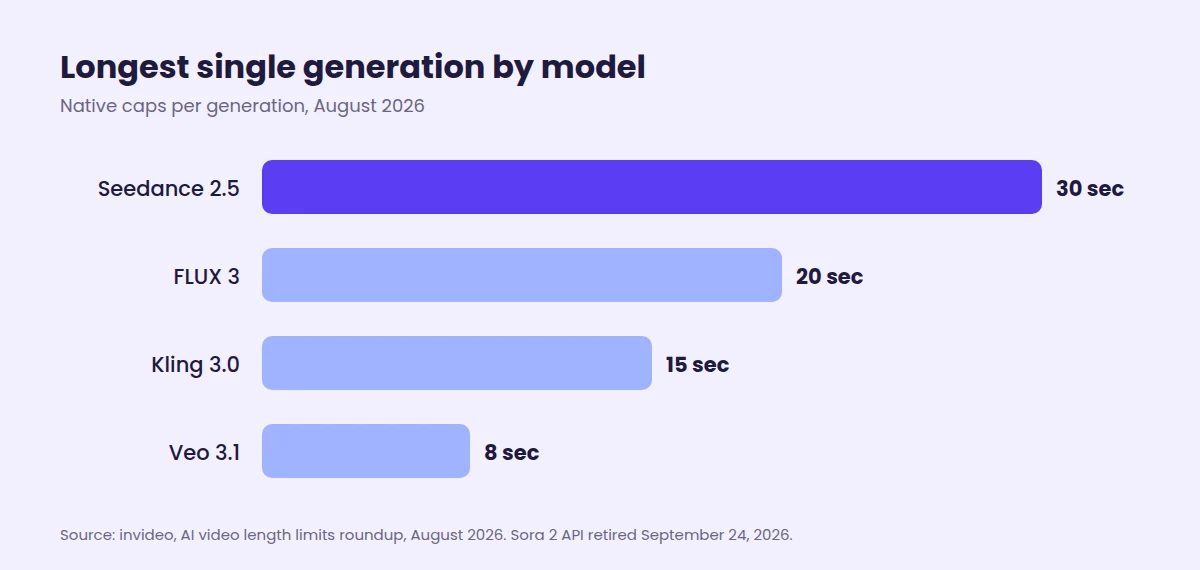
| Model | Longest single generation | Worth knowing |
|---|---|---|
| Seedance 2.5 | 30 seconds | Can be extended twice |
| FLUX 3 | 20 seconds | Early access, around 720p |
| Kling 3.0 | 15 seconds | Up to 6 labeled shots per generation |
| Veo 3.1 | 8 seconds | 1080p and 4K only at 8 seconds |
| Sora 2 | Retired | API shut down September 24, 2026 |
That Sora row is recent. OpenAI discontinued the Sora 2 API on September 24, 2026, so a lot of older comparison posts are already out of date.
Most models can chain extensions to go longer, but each join costs you something. Veo 3.1’s extensions, for example, drop the output to 720p. For a skincare brand, every stitch is another chance for the label to shift, the cap to change color or the lighting to jump. A single 30-second take means one continuous render of your product from the first frame to the last.
Why 30 seconds matters for a product clip
Think about what a shopper needs to see before they care: the product itself, then the product doing its job, then some proof it’s well made and a moment to land on. That’s four beats, and eight seconds can’t hold them.
Wyzowl’s numbers back up the instinct. 85% of people say a video has convinced them to buy something, and 63% would rather learn about a product from a short video than from any other format. In the same survey, 89% of consumers said video quality affects how much they trust a brand. A clip that cuts off mid-demo, or one where the bottle changes shape between stitched segments, reads as cheap.
Where to Run Your Seedance Prompts Without a Studio
ByteDance’s own apps, Jimeng AI and Doubao Pro, are the direct routes. Developers can also call the BytePlus ModelArk API. But if you sell online and just need a product video you can post, a platform that bundles several models is less setup.
The Predis.ai AI video generator lists Seedance 2.5 next to Veo, Kling, WAN and Minimax Hailuo in one account. Start from a prompt, an image or a product link. You can redo one scene without remaking the whole video, and when it’s ready, export in 1080p or send it to the built-in scheduler.
Running the same Seedance prompt on a second model is also a quick way to compare looks before you commit. For a wider view of your options, see this roundup of AI tools for product videos.
Run one prompt on more than one model
Use your prompt on several video models in one account, then fix one scene instead of remaking the whole video.
Before You Hit Generate
Thirty seconds changes what a single AI generation can be. It stops being a teaser and starts being a complete product clip, with a hook, a demo and a closing frame in one take.
Length also amplifies a sloppy prompt. If you keep one thing from this Seedance 2.5 prompt guide, make it the beat plan: plan the seconds first, give every reference one narrow job and protect the label above everything else.
When something goes wrong, fix that one thing. Rewriting the whole prompt tends to swap one problem for several new ones.
And get more out of each good take. One strong 30-second clip can be cut into a 15-second Reel, a 6-second bumper and a looping product page video. This guide to building a video content strategy with AI covers how to plan those cutdowns.
FAQs
Write it in this order: a style and format line, references with one role each, a scene line, timestamped beats, a continuity line, an audio line and a short constraints line. All three Seedance 2.5 prompts above follow that order, so you can use any of them as a starting point.
They’ll run, but a 15-second Seedance 2.0 prompt leaves half of a 30-second clip undirected, and BytePlus says under-directed stretches get filled with improvisation. Either set the length to 15 seconds or add beats until the timestamps cover the full clip.
For anything longer than one shot, usually yes. Seedance 2.0 workflows run 4 to 15 seconds with about a dozen reference files, while 2.5 runs up to 30 seconds with up to 50, according to Topview. That extra room keeps a product consistent through a full reveal and demo. For a quick 5-second loop, 2.0 still does the job.
Not in one pass. A single generation tops out at 30 seconds, and ByteDance says you can extend a clip twice. Some reports mention totals near 3 minutes in beta, but those aren’t confirmed. For a 60-second ad, extend once or assemble two 30-second takes in an editor.
It depends on where you run it. Rendley reports that the public BytePlus API outputs 480p or 720p, while some platforms, such as Morphic, advertise native 1080p. Check your platform’s resolution options before you plan a large-format placement.
No. Text-to-video and image references both work without one. A video reference helps when you want a specific camera move, pacing or performance copied into your clip. If you add one, tell the model which part to use, such as “camera movement only,” so it doesn’t borrow the subject or location too.
You may also like: