


Explore this content with AI:
Hailuo AI changed under most people’s feet this summer. On July 31, 2026, MiniMax launched H3, a single model that reads text, images, video, and audio together. It returns up to 15 seconds of 2K video with stereo sound built in. The app sells it as Hailuo 3.0.
Plenty of the advice that ranks for Hailuo AI was written for the older Hailuo 2.3, though. It tells you to stack quality tags, add negative prompts, and plan around 6-second clips. H3 works differently, and some of those habits now make your footage look worse.
Below are 6 steps for making realistic ad footage in Hailuo AI, built on the published prompt rules for H3.
What changed in Hailuo AI with H3
First, the names, because they get tangled. MiniMax is the company. Hailuo AI is its video app, on the web and on mobile. H3 is the model inside it, and you’ll see it called MiniMax H3, Hailuo 3.0, or Hailuo 3 depending on who’s writing.
Here’s what the switch means in practice, based on specs reported as of October 2026:
| Hailuo 2.3 (now legacy) | MiniMax H3 | |
|---|---|---|
| Clip length | 6 seconds (10 on higher plans) | 4 to 15 seconds |
| Resolution | 768p or 1080p | 768p, or 2K through a regenerate step |
H3 also adds two things that change how you work: stereo sound made in the same pass as the picture, and a reference mode that takes up to 9 images, 3 videos, and 3 audio clips at once. The big shift is that H3 reads your prompt like a brief. You describe how the pieces relate, and the model works out the rest. That’s why a pile of adjectives does less than it used to, and a clear plan does more.
Step 1: Pick the mode that fits the shot
Hailuo AI gives you three ways in, and the right one depends on what has to stay true on screen.
Use text only for loose shots where nobody will check the details: a street at dusk, steam off a coffee cup, waves on rocks. Use a start frame (and an optional end frame) when a specific thing must look right from the first moment, like your actual product. This is the Hailuo AI image to video route, and it’s the safest choice for product ads, because the model starts from a real photo instead of inventing your packaging.
Use reference mode when you need something carried across the clip, which is most UGC-style ads with a presenter: a face, a voice, a camera move, or a product seen from several angles. In the app, the prompt box takes up to 12 reference files.
Pick the aspect ratio before you generate, too. H3 supports vertical, square, and widescreen formats, and cropping a finished clip later can cut off the framing that made it look real. For a start frame, use a sharp, evenly lit photo shot at that same ratio. If the ad is headed for Reels, check this guide to Instagram Reel length before you plan the shots.
A simple rule: the more your sale depends on a detail, the more that detail should come from a real file rather than a sentence.
Step 2: Write the prompt as a timed shot list
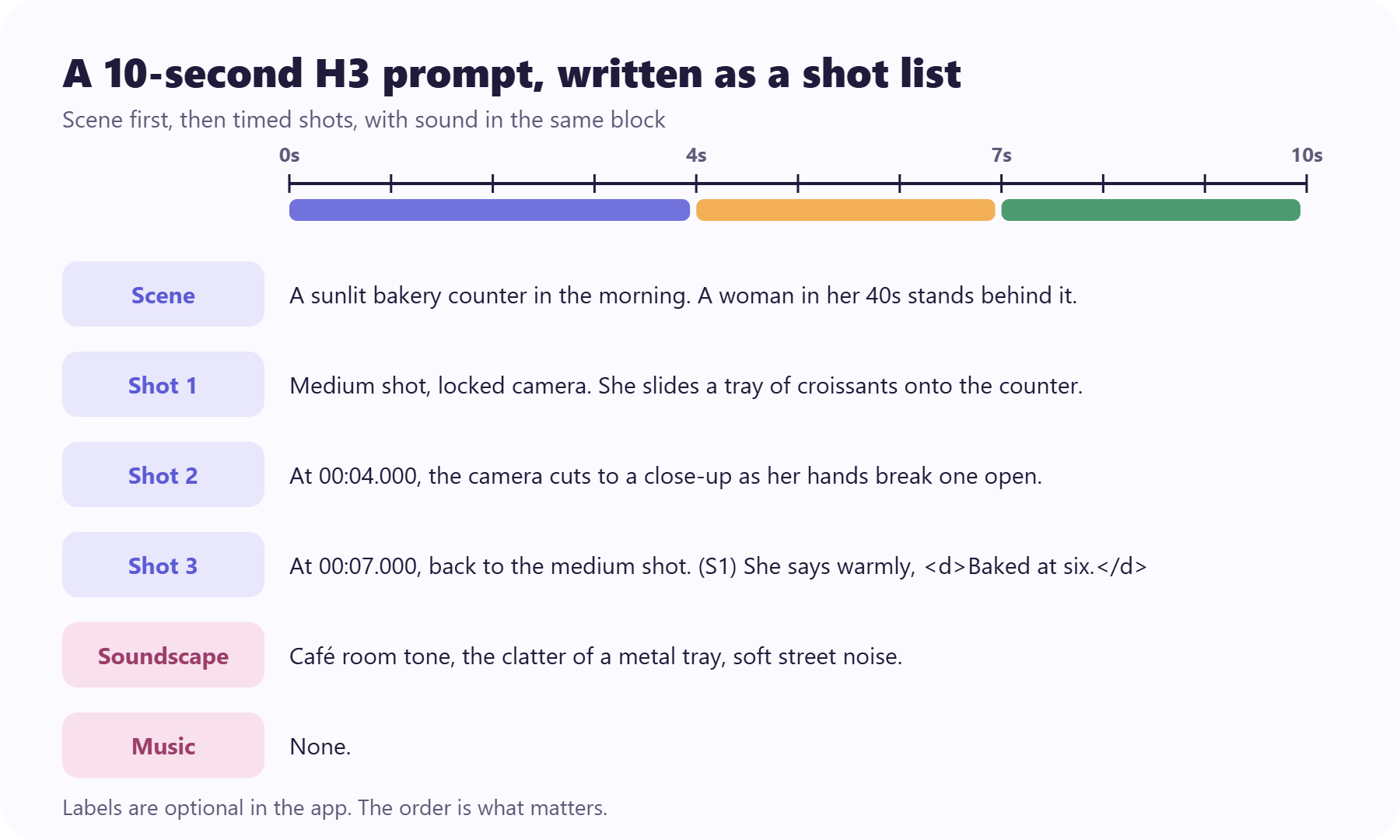
MiniMax publishes an official H3 prompt guide, and ComfyUI’s documentation summarizes it alongside its own tips. Together they ask for a specific order: describe the overall scene first, then break it into numbered shots, with camera and sound in the same block.
Each later shot opens with a single cut time, such as “At 00:04.000, the camera cuts to…” You start a new shot when the subject, place, viewpoint, or time changes. A small reframe stays inside the same shot.
A small, sunlit bakery counter in the morning. A woman in her 40s in a flour-dusted apron stands behind it.

[Shot 1] Medium shot, locked camera. She slides a tray of croissants onto the counter and looks up with a small smile.

[Shot 2] At 00:04.000, the camera cuts to a close-up of one croissant as her hands break it open. Steam rises from the center.

[Shot 3] At 00:07.000, the camera cuts back to the medium shot. (S1) She says warmly, Baked at six. Gone by ten.

Soundscape: quiet café room tone, the clatter of a metal tray, soft street noise through the open door.

Music: none.
Write it in English, even if the dialogue is in another language. This guidance is written for the API and the open model, so treat the labels as optional in the app. The order is the part that matters.
Notice what’s missing: no “cinematic, 8K, photorealistic.” The shot list does the work those tags pretended to do.
Build an H3 prompt
Fill in the scene and up to 4 timed shots. The builder puts them in the order H3’s prompt guidance asks for and flags common mistakes. Copy the result into Hailuo AI.
A small, sunlit bakery counter in the morning. A woman in her 40s in a flour-dusted apron stands behind it.

[Shot 1] Medium shot, locked camera. She slides a tray of croissants onto the counter and looks up with a small smile.

[Shot 2] At 00:04.000, the camera cuts to a close-up, locked camera. Her hands break one croissant open. Steam rises from the center.

[Shot 3] At 00:07.000, the camera cuts to a medium shot, slow push-in. She looks at the camera. (S1) Says warmly, <d>Baked at six. Gone by ten.</d>

Soundscape: Quiet café room tone, the clatter of a metal tray, soft street noise through the open door.

Music: None.
No issues found. Draft it at 768p first.
Showing an example prompt. If editing doesn’t update it, your site is blocking this tool’s script.
Step 3: Give every reference one job
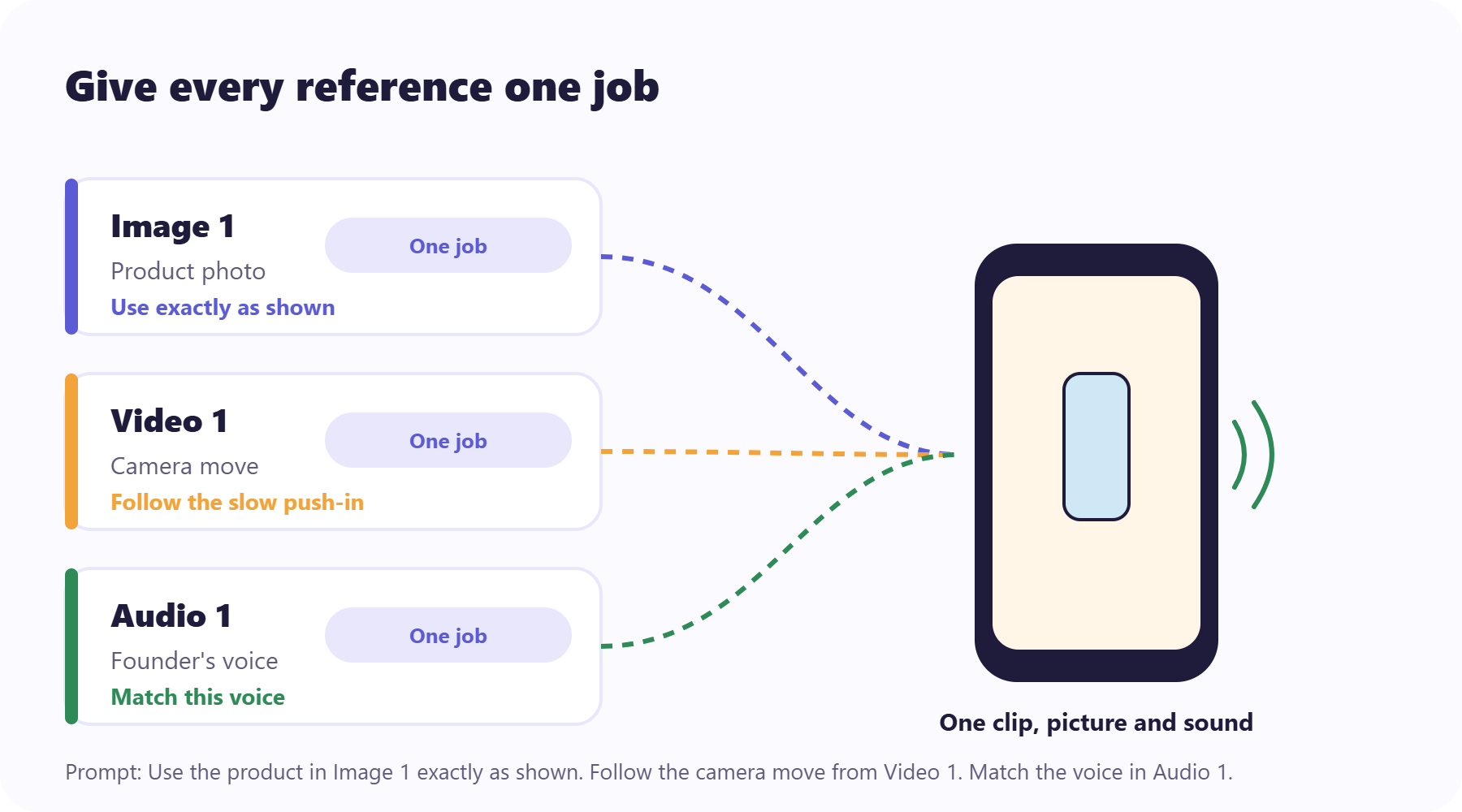
Reference mode is where H3 pulls ahead of older Hailuo models, and where most people trip. Name each file by its order and tell the model what it’s for. MiniMax’s launch post shows the pattern: take the camera move from Video 1, have the character in Image 2 sing, and match the vocals to Audio 3.
For an ad, that might read: “Use the product in Image 1 exactly as shown. Follow the slow push-in camera move from Video 1. The presenter’s voice should match Audio 1.”
Keep within the limits: up to 9 images, 3 videos, and 3 audio clips, with each clip between 2 and 15 seconds. An audio reference also needs at least one image or video beside it, since sound alone gives the model nothing to show.
For a presenter who appears in several shots, one image can hold a small character sheet: a front view, a side view, and a full-body view, each clearly labeled. H3’s reference guidance supports this, and you can point a shot at a single panel, like “the front view in Image 2.”
If a file has two possible jobs, like a photo of your presenter holding the product, say which part matters. “Use the face from Image 2” is clearer than “use Image 2.”
Start from an ad that already works
Use a reference ad as your input instead of a blank prompt.
Step 4: Write the sound into the prompt
H3 makes sound and picture together, which is the biggest realism gain in this release. But if you leave the sound unwritten, the model fills the gap with a guess.
H3’s prompt guidance splits audio into two parts. The soundscape covers room tone, effects, and anything non-verbal, in 1 to 4 sentences. Music gets its own line, and you write “none” if you don’t want any. If stray speech keeps showing up, fill in both parts explicitly.
Dialogue has its own rules. Give each voice a speaker ID, put the spoken words in dialogue tags, and keep plain double quotes for text that should appear on screen. For a voiceover, say it’s off-screen and that the speaker’s lips stay closed, or you may get a presenter mouthing words they never say.
H3 reportedly holds steady in 11 dialogue languages, English, Spanish, Chinese, and Japanese among them. Short lines still sound more natural than long ones, so write the script the way people actually talk.
A few soundscape lines you can adapt:
- Product on a counter: “Quiet kitchen room tone, a soft clink as the jar touches the marble, a fridge humming in the background.”
- Outdoor shot: “Light wind, distant traffic, birds now and then, footsteps on a gravel path.”
- Talking to camera: “Small-room tone with a slight echo, faint keyboard clicks from another desk.”
Step 5: Say what you want, not what you don’t
This is the step that breaks the most old Hailuo AI habits. Several popular guides still recommend negative prompts like “no blur, no extra fingers, no text.” ComfyUI’s H3 guidance says the opposite. Its H3 workflows have no negative-prompt branch at all, and it warns that ban lists add the very concepts you name. The safer habit, in any app, is to describe what you want.
Rewrite every “no” as a “yes”:
- “No shaky camera” becomes “locked camera on a tripod.”
- “No extra fingers” becomes “her hands rest flat on the counter.”
- “No text” becomes nothing at all. Just don’t mention text.
On-screen text is a special case. MiniMax says H3 handles text and brand rendering accurately, and the prompt guidance puts each string in double quotes, word for word. That’s a real improvement, so test it with your headline. For small print, prices, or a logo that legal has to approve, add it in your editor anyway. A claim in a launch post isn’t a guarantee for your label.
Step 6: Draft at 768p, regenerate the keeper at 2K
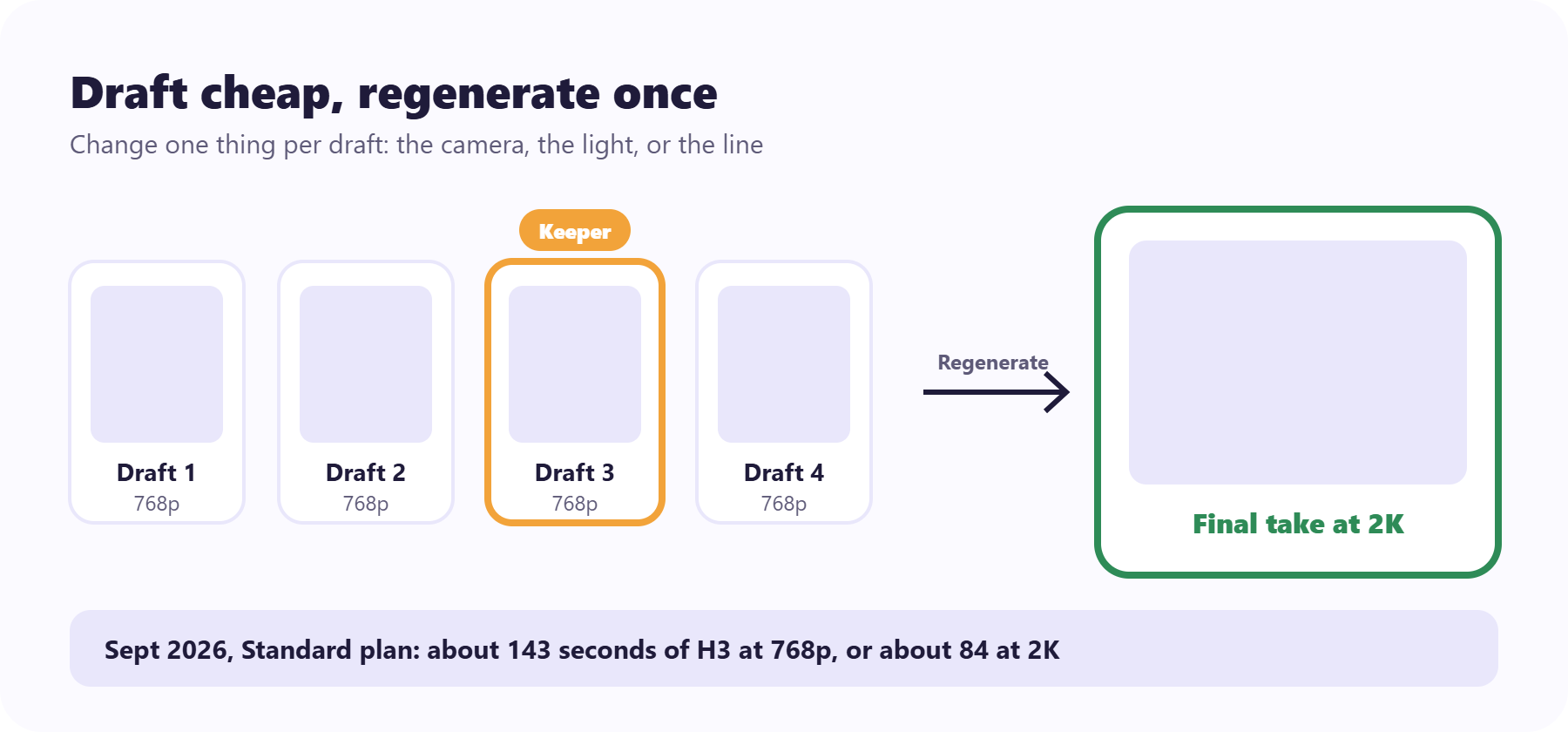
H3 renders at 768p by default and reaches 2K through a second regenerate step. MiniMax describes this as the model reworking its own low-resolution output, which it says recovers small text and fine detail.
That step costs real credits. In September 2026, Hailuo’s Standard plan covered about 143 seconds of H3 at 768p, but only about 84 at 2K. So don’t experiment at 2K. Run your drafts at 768p, change one thing at a time (the camera move, the light, or the line of dialogue), and only regenerate the take you’d actually publish. Three or four drafts per shot is a sensible budget before you rethink the prompt itself.
Two app details help here. The credit cost shows beside the Create button before you generate, and failed generations don’t use credits. On the Free and Standard plans you can run one task at a time, so queue your variations in order of what you most need to learn.
Putting it together: a 15-second product ad
Here’s how the six steps combine for a skincare brand.
The mode is reference generation. Image 1 is a clean product photo of the serum bottle, Image 2 is a character sheet of the presenter, and Audio 1 is a short recording of the founder’s voice. The prompt opens with the scene: a bright bathroom shelf in the morning, soft window light from the left.
Shot 1 runs from the start: a slow push-in on the bottle from Image 1 on the shelf. At 00:05.000, the camera cuts to the presenter from the front view in Image 2, who lifts the bottle into frame. At 00:10.000, it cuts to a close-up of one drop landing on her fingertip, while an off-screen voiceover matching Audio 1 says the product line, lips closed. The soundscape is quiet bathroom tone and a faint tap running, and the music line says none.
Draft it three times at 768p, keep the best take, and regenerate only that one at 2K. Add the price and any fine print in your editor afterward. For more ways to structure the shots, browse these product advertisement video examples.
Where Hailuo AI still trips
H3 is good, not finished. MiniMax’s own launch post lists visual detail as something it’s still working on. On one public leaderboard, H3 trailed Google’s Gemini Omni Flash in text-to-video and sat behind Seedance 2.0 and Gemini Omni Flash in image-to-video. If you’re still choosing a tool, this roundup of AI video ad generators compares more options.
In practice, the same tells show up in every model. Faces shift when a head turns. Hands fumble small objects. A label drifts between shot one and shot three. Watch each take on your phone, once with sound and once without, before you put money behind it.
When one frame still goes wrong, don’t burn credits regenerating the whole clip. Predis.ai lets you edit a single frame of a video ad and keep the rest, so the shots that worked stay put.
Fix the frame, not the whole video
Edit the one shot that drifted and keep the ones that worked.
Using Hailuo AI videos in ads
Hailuo’s FAQ says any video you can download without a watermark is yours to use commercially, and watermark-free downloads come with the paid plans. Check the current terms before you run a paid campaign, since plans have changed since H3 launched.
Label the ad, too. TikTok asks creators to label realistic AI content, Meta may require its “AI info” label, and YouTube has its own disclosure setting. If you’re thinking of running the open H3 weights yourself, note that commercial products over $20 million in yearly revenue need MiniMax’s written permission.
The prompt is the brief now
The old Hailuo AI playbook was about coaxing a good clip out of a short prompt. With H3, you’re writing a brief: what happens, in what order, with which files, and what it sounds like. Write that clearly and most of the fake look never shows up.
Then let the results decide. Make 2 or 3 versions of the ad and see which one earns attention. Predis.ai’s insights show how each variant performed after it ran, so your winner is something you found rather than something you guessed.
Make the variants, then find your winner
Make ads that look like your brand and see which one earned attention.
FAQs
Partly. As of September 2026, the free plan gave one-time trial credits rather than a monthly allowance, and paid plans added monthly credits and watermark-free downloads. Prices shown in the app have changed since H3 launched, so check the plan page before you subscribe.
Hailuo AI is the app. MiniMax H3 is the video model inside it, launched on July 31, 2026, and the app also calls it Hailuo 3.0. Older models like Hailuo 2.3 are still available but are now treated as legacy.
H3 makes clips from 4 to 15 seconds. Older Hailuo 2.3 clips run 6 seconds, or 10 on higher plans. For a longer ad, generate several short shots and cut them together, which also gives errors less time to build up.
Yes, with H3. It generates stereo audio together with the picture, including dialogue, room tone, and effects. Write the sound into your prompt, because anything you leave out gets guessed.
According to Hailuo’s FAQ, videos you can download without a watermark are yours to use commercially, and those downloads come with paid plans. Terms change, so confirm them on Hailuo’s site before a paid campaign, and turn on each platform’s AI label when the footage looks real.
You may also like: