

Explore this content with AI:
Kling AI made over RMB850 million in revenue in Q2 2026, growth of more than 200% year over year, according to Kuaishou’s Q2 results. That’s a lot of people paying to make video. Many of them hit the same wall.
Shot one looks great. By shot three, your presenter has a new jawline and a different jacket.
That’s character drift, and it’s the main reason AI video still looks like AI video. The good news is that Kling 3.0 ships the tools to stop it. The catch is that none of them switch on by themselves. You build the character first, attach it to the job, and only then plan the shots.
Get that order right and one face can carry a whole campaign. Below is how to use Kling 3.0 for character consistency, in the order that works.
Why your character keeps changing between shots
Every generation is a fresh guess. When you describe a person in text, the model reads “brown hair, green jacket” and interprets it again on every run. Give it a single photo and it still has to invent the side of the face it never saw. Kling’s own subject binding guide says as much: with one image, the model guesses the unseen parts.
Kling 3.0 was built to close that gap. Kuaishou launched it on February 5, 2026 as four models (Video 3.0, Video 3.0 Omni, Image 3.0 and Image 3.0 Omni) and pitched stronger consistency and clips up to 15 seconds as the headline upgrades. (If you’re comparing models first, here’s our roundup of AI video generators for marketers and creators.)
Three features do the heavy lifting for Kling 3.0 character consistency:
- Elements, a library where you store a character built from reference images or a short video.
- Subject binding, the toggle that ties a stored Element to the video you’re making right now.
- Multi-Shot, which plans up to six camera cuts inside one 15-second generation while the bound character stays put.
Kling 3.0 or Kling 3.0 Omni?
Both handle text-to-video and image-to-video. Omni is the one Kling describes as adding video character references, where you upload a short clip instead of stills and it picks up movement and voice too.
If you’re building a recurring character for a series, start with Omni. For a single clip, standard Video 3.0 is fine. Still deciding whether Kling suits your work at all? This list of features to look for in an AI video generator is a useful filter.
The rule that makes the rest work: lock vs vary
Most drift comes from mixing two kinds of instructions in one prompt. Some details should never change. Others should change every shot. Write them down separately before you open Kling.
| Lock (same in every shot) | Vary (change per shot) |
|---|---|
| Face shape, skin tone, eye color | Action (“picks up the jar”) |
| Hairstyle and hair color | Camera move and framing |
| Outfit and one signature item | Location and time of day |
| Voice tone and accent | Lighting mood |
| Age and build | The line of dialogue |
The locked column lives in your reference images and your Element. The varied column lives in your shot prompts. Keep them apart and most of the weird stuff stops.
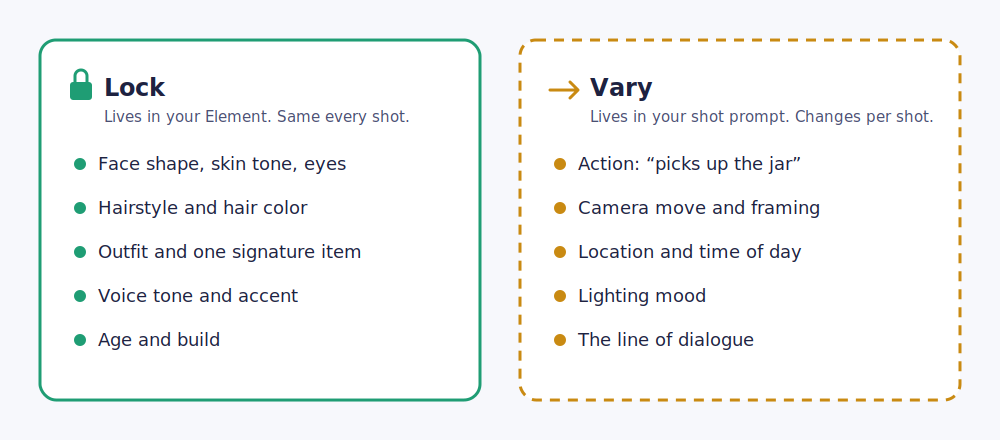
A quick habit helps: write a five-line identity sheet for the character (name, face, hair, outfit, signature item) and keep it in a doc. You’ll reuse it for references, for naming the Element and for any negative prompt later.
Step 1. Build a reference set Kling can’t misread
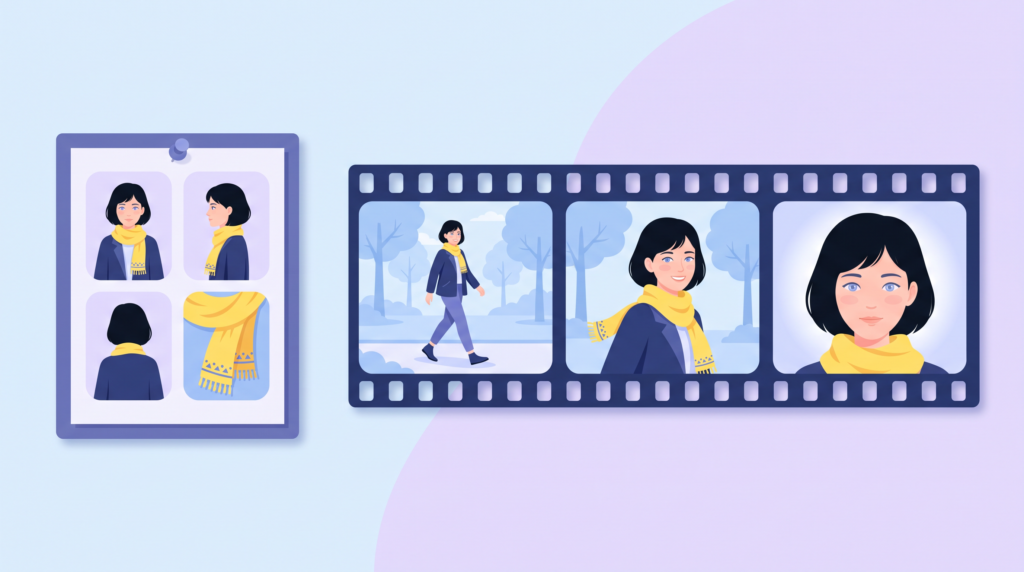
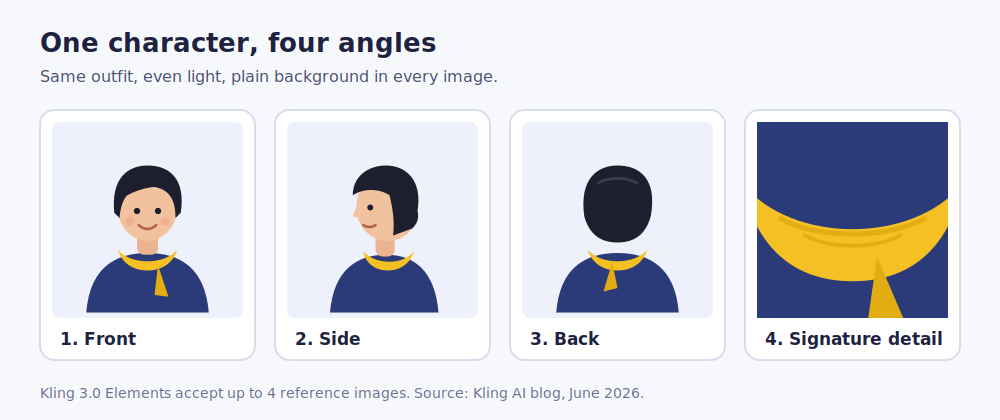
Your Element is only as good as what you feed it. Kling AI’s guide says Elements accept up to four reference images and suggests a front view, a side view, a back view and a detail shot. Four angles remove the guesswork that a single photo leaves behind.
A few things make those images work harder:
- Even, flat lighting. Kling recommends a master image with even light and clear facial geometry. Harsh shadows read as features.
- A plain background, so the model separates the person from the room.
- The same outfit in every image. If the jacket changes between references, it’ll change between shots.
- One signature detail that’s big enough to see, like a yellow scarf, rather than a tiny ring.
You can also build the Element from video. Kling accepts a 3 to 8 second clip of a single character and pulls appearance, motion and voice from it. For voice on its own, a 5 to 30 second audio sample binds a voice tone to the character.
One rule that isn’t optional: if the character is a real person, get their written permission for likeness and voice before you upload anything.
Step 2. Create the Element, then bind it
Honestly, this is where most first attempts fail. It’s also the easiest fix.
Creating an Element in the Element Library doesn’t attach it to anything. It just saves it. Give it a plain name that matches your identity sheet (“Maya, studio look”) so you can find it later.
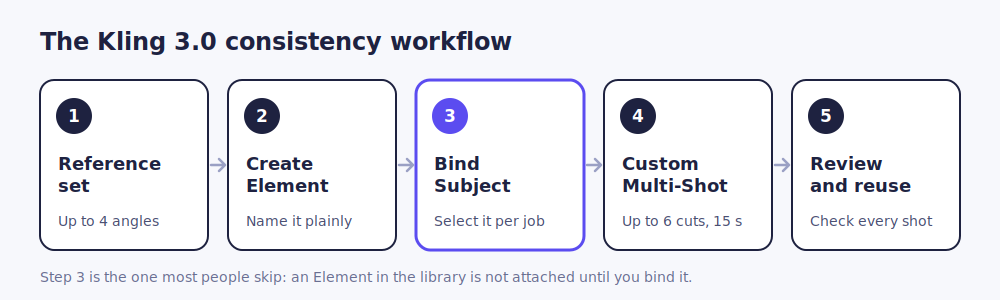
To use it, go to image-to-video, upload your start image, then open Bind Subject to Enhance Consistency and select the Element. Kling’s VIDEO 3.0 user guide lists this as its own step after the upload. Skip it and Kling has only the start image to go on, which is exactly how drift creeps back in.
Before you hit generate, look at the binding panel and confirm the right Element is selected. Five seconds of checking saves a full re-render.
Boost Sales on Social Media with AI ⚡️
TRY NOW
Step 3. Plan the scene with Custom Multi-Shot
Keeping one clip consistent is easy. The real test is cutting from a wide shot to a close-up without the face changing.
Kling 3.0 handles this inside one generation. Turn on Multi-Shot first, because the user guide makes it a prerequisite for Custom Multi-Shot. With Multi-Shot on, Kling plans the cuts itself. Click Custom Multi-Shot and you write each shot and its duration. You get up to six cuts in a 15-second video.
Custom is the better choice when consistency matters, since you decide what each shot shows. Keep each one simple:
- One visible action per shot.
- One camera move per shot.
- Tag the same Element in every shot where the character appears.
- Describe what the character does, not what they look like. The Element already holds the look.
Here’s a 4-shot plan for a small skincare brand with a recurring presenter:
Notice what’s missing: there’s no hair color, outfit or face description anywhere, and that’s the point. For more product-led shot ideas, see how to make product demo videos from images.
Step 4. Write prompts that don’t fight your reference
The usual trap? You’ve bound a character with short black hair, and then your prompt says “a woman with flowing hair.” Now the model has two instructions that disagree, and it’ll blend them.
So the first rule of a Kling 3.0 prompt guide for consistent characters is simple: don’t re-describe the look. If your workflow does need appearance text, paste the exact same identity block every time, word for word.
Three more habits help:
- Add negative prompts as a guardrail. Kling AI suggests terms like “morphing features” and “changing clothes” to keep the model faithful to the reference.
- Use camera language. Kling’s guide says specific cinematography terms, such as dolly push-in or lateral track, give smoother results than broad descriptions.
- Leave the voice alone. If you bound a voice to the Element, don’t add “deep, gravelly voice” to the prompt. That’s a second instruction fighting the first.
Want to skip the formatting? Use the builder below. Fill in your shots once and copy a ready Custom Multi-Shot prompt with a negative prompt attached.
Step 5. Review every shot, then reuse the Element
Watch the full clip before you judge it. Then check each shot against your identity sheet: face, hair, outfit, signature detail, hands and props.
Small details are the first to wander. Even with binding on, a thin necklace or a small scar can shift between cuts. That's why Step 1 asks for a signature detail big enough to see.
Long chains are the second weak spot. If you keep extending one clip, identity tends to soften. Generate fresh multi-shot scenes from the same bound Element instead, then cut them together in your editor. Using a strong frame from the last good clip as the start image for the next one helps the scenes line up.
And when one frame is off but the rest is right? Fixing that one frame is cheaper than re-rendering the whole scene. Predis.ai has fix-one-frame editing for exactly that moment in ad work.
Once a character passes review, keep the Element. Your next scene starts from the same saved character, and so does the one after it.
Mistakes that quietly break consistency
Most Kling AI character consistency problems trace back to one of these:
- Creating the Element but never binding it. Check the Bind Subject panel before every run.
- Mixed outfits in the reference set. The model averages them. Shoot or generate all references in one look.
- Re-describing appearance in shot prompts. Let the Element hold the look and keep prompts about action.
- Too much happening in one shot. A pan, a zoom and a dance move in three seconds invites distortion. Split it.
- Typing "Shot 1, Shot 2" with Multi-Shot switched off. Kling makes a single shot. Turn the switch on and use the Custom Multi-Shot fields.
Using one character across your ads
A consistent character pays off fastest in advertising. Kling's own guide points to this use: a brand builds a spokesperson Element once, then makes many videos with the same face and voice in different settings.
That's the same idea behind UGC-format ads, where one recognizable presenter shows up across a dozen variants. If you'd rather not build every clip by hand, Predis.ai's UGC ad maker makes creator-style video ads made from one link, with script, presenter, voiceover and captions in one place. You can also feed it a reference ad you like and check what's working for others with competitor intelligence. Your call on how much of the workflow you hand over. And for quick social clips that don't need a recurring face, a text-to-video maker gets you there faster.
Make a UGC ad with Predis.ai
Make UGC-style video ads from one product link and let your numbers pick.
Consistency is a setup problem, not luck
If your character keeps changing in Kling 3.0, the model usually isn't the problem. The setup is. That's the real answer to how to use Kling 3.0 for character consistency. Clean references and a bound Element fix most drift. Shot prompts that describe action, not appearance, handle the rest.
Start small this week. Build one character, bind it, and run a four-shot scene. Once that holds, you have an asset you can reuse in every video you make after it.
FAQs
Partly. Text-only prompts can hold a general look across a single clip, but the model reinterprets the description each time, so faces and outfits drift across cuts and separate videos. For anything recurring, build an Element from reference images or a short video and bind it.
Kling's guide says up to four, and recommends front, side, back and a detail shot. More angles mean less guessing. Use the same outfit, even lighting and a plain background in all of them.
Yes. Kling supports multiple speakers in one scene with lip sync. Build a separate Element for each character, give each a distinct name and signature detail, and say which character speaks each line in the prompt so voices land on the right face.
Yes, and it's the most reliable route. Upload a start image, then use Bind Subject to Enhance Consistency to attach your Element. The start image sets the opening frame while the Element holds the identity across the rest of the clip.
Yes. Kling 4.0 Flash opened to a limited group of users in late September 2026, with the full model expected in October (check Kling's release history for the latest). The habits covered here (clean references, bound characters, shot-by-shot plans) carry over to newer versions, and your saved character work isn't wasted.
You may also like: