

Explore this content with AI:
As of early 2026, Threads has crossed 400 million monthly active users and surpassed X (formerly Twitter) in mobile daily active users for the first time — a milestone that would have seemed impossible. The community skews warm and conversational, and organic reach is still generous in a way that most platforms abandoned years ago, which makes threads a great option for creators.
If you’re a brand, creator, or casual user trying to figure out whether Threads is worth your time in 2026 — and how to actually use it — this guide covers everything from setting up your account to the content strategies that are working right now.
What Is Threads?
Threads is Meta’s text-first social media platform, built natively inside the Instagram ecosystem. Think of it as Instagram’s quieter, more conversational sibling: less visual performance anxiety, more genuine back-and-forth.
The brands doing well on Threads share a common approach: they’re conversational, casual, and willing to show personality. The corporate-polished content that works on LinkedIn falls flat here. Threads has its own tone — warm, a bit nerdy, genuinely engaged — and the brands that match it are growing fastest.
What makes Threads structurally different from X is its algorithm. Rather than surfacing breaking news, trending political takes, and high-drama content, Threads prioritizes replies, genuine discussion, and what its algorithm calls “positive community engagement.”
How to Set Up a Threads Account
1. Instant Onboarding
If you already have an Instagram account, setting up Threads takes about 30 seconds. Download the Threads app, tap “Log in with Instagram,” and your account is created with your existing username, bio, and profile photo automatically imported.
Here is a step-by-step process on how you can set up a Threads account:
- Download the Threads app from the App Store (iOS) or Google Play Store (Android) and open it.
- Tap “Log in with Instagram” on the welcome screen — no separate email or password needed.
- Confirm your Instagram account when prompted. If you’re already logged into Instagram on your device, it will detect your account automatically.
- Import your profile — Threads will pull in your Instagram username, bio, and profile photo. Tap “Import from Instagram” to keep them, or edit each field manually if you want a different identity on Threads.
- Choose your privacy setting — select either a public or private profile. Public is recommended for brands and creators who want organic reach.
- Follow your Instagram connections — Threads will prompt you to follow everyone you already follow on Instagram in a single tap. Do it.
- Tap “Join Threads,” and your profile goes live immediately.
2. Profile Optimization
Before you start posting, spend five minutes on your profile and optimize your bio. Here are some things that you can do:
- Keep it to one or two lines. Threads’ bios are short by design. You have 150 characters. Use them to answer one question: why should someone follow you specifically?
- Lead with your value, not your title. “Founder of X” is a title. “I help SaaS brands grow without paid ads” is a value proposition.
- Use a natural, conversational tone. Write your bio the way you’d introduce yourself at a casual industry event — confident, clear, and human.
- End with a soft CTA if relevant. A low-pressure call to action at the end of your bio — “Follow for weekly content strategy breakdowns” or “Ask me anything about email marketing” — gives visitors a reason to act immediately rather than just read and scroll.
How to Follow Others on Threads
The Instagram Follow Transfer
When you first join Threads, you’re prompted to follow everyone you already follow on Instagram. Do it. This single action instantly populates your Following feed with familiar faces, gives the Instagram algorithm a strong signal about your interests, and — crucially — notifies those accounts that you’ve joined Threads.
Many of those accounts will follow you back. For brands and creators joining today, this is the easiest audience-seeding mechanism available on any platform.
Manual Following and Feed Navigation
Beyond the Instagram import, use the Search tab to find creators, brands, and thought leaders specific to Threads. The platform has two main feed modes:
- For You — algorithmically curated posts from accounts you don’t follow, based on your interests and engagement patterns
- Following — a chronological feed of only accounts you follow
Most users spend the majority of their time in For You, which is where your content has the highest chance of reaching new audiences. The Following feed is better for staying current with specific accounts without algorithmic interference.
How Threads Compare to Other Platforms
| Feature | Threads | X (Twitter) | Bluesky |
|---|---|---|---|
| Main Focus | Relatable / Visual | Breaking News / Politics | Niche Communities / Devs |
| Ads | Meta Ads Integration | Advanced Targeting | None (as of 2026) |
| Verification | Linked to Meta Verified | Paid (X Premium) | Verifiable |
| Algorithm Style | Conversation-first | Engagement / controversy | Engagement/controversy |
Threads drives 73.6% higher engagement rates than X, with a median engagement rate of 6.25% compared to X’s 3.6%. For brands, that gap is meaningful — it means your content is more than twice as likely to generate a real response on Threads than on X.
Bluesky appeals to developers, journalists, and users who distrust centralized platforms. It’s a niche but loyal audience. If your brand targets tech-forward communities, it’s worth a presence — but it doesn’t offer the scale or advertising infrastructure that Threads now provides.
How Brands Are Using Threads in 2026
1. The “Unfiltered” Brand Voice
The brands winning on Threads have dropped the PR filter. Polished announcements and brand-speak get scrolled past. Witty, self-aware, and even self-deprecating content gets replies, reposts, and the kind of engagement that compounds.
2. Community Building with Live Chats
A 2026 feature worth adopting immediately: Live Chats within Threads Communities. Moderators can set a named, timed live chat session — essentially a real-time text room — for events like product launches, sports moments, or weekly brand conversations. Moderators can set a name, photo, and start and end dates for the Live Chat session.
3. Visual Storytelling on a “Text” Platform
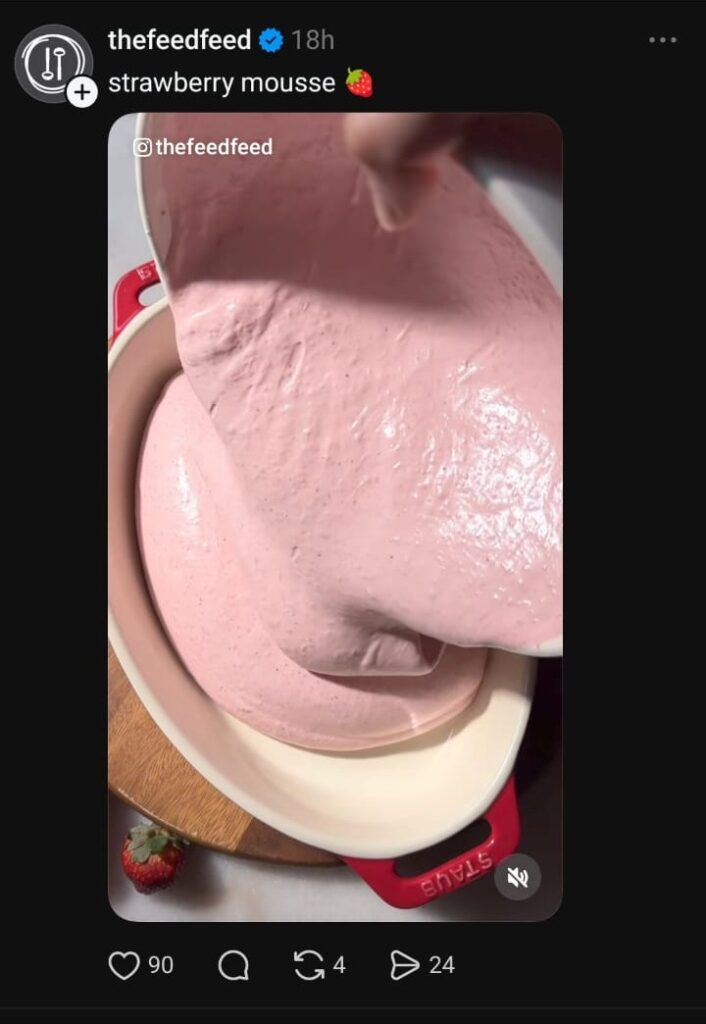
Here’s the counterintuitive truth about Threads: despite being marketed as a text-first app, images and carousels consistently outperform text-only posts in reach and engagement.
The character limit sits at 500 — enough for a meaningful thought, not enough for a full essay — and pairing that text with a strong image or a two-to-three-slide carousel amplifies both views and replies.
Tips to Boost Engagement on Threads
1. The timing window matters
Most audiences are active during weekday mornings, late nights, and lunch hours. Test your specific audience, but Tuesday at 8 AM is a reliable starting point for brands.
2. Use polls strategically
Threads supports up to four poll options, which outperforms the binary choices most platforms offer. Low-stakes, opinionated polls — “What’s your actual work-from-home setup?” or “Which of these AI tools is genuinely useful?” — drive high comment volumes because people instinctively want to defend or expand their answer.
3. Prioritize “sends per reach.”
The algorithm signal that matters most on Threads right now isn’t likes or reposts — it’s how often your content gets shared into Instagram DMs.
When someone shares your Thread to a friend in DMs, it signals the algorithm that your content is worth distributing further. Content that makes people think “I need to send this to someone” — relatable scenarios, sharp takes, genuinely useful tips — outperforms content that’s impressive but passive.
Content Ideas for Threads
1. The POV Series

The POV format that dominates Instagram Reels and TikTok translates perfectly to Threads as text.
“POV: You’re a founder who just realized the product roadmap is a wish list,” followed by a relatable scenario, generates replies because readers see themselves in it. Pair it with a behind-the-scenes photo, and you’ve got a high-performing post in three minutes.
2. Hot Takes and Low-Stakes Debates
Threads rewards opinions — but the key is keeping them low-stakes. “Does pineapple belong on pizza?” generates 200 replies without alienating half your audience.
3. Behind-the-Scenes Content
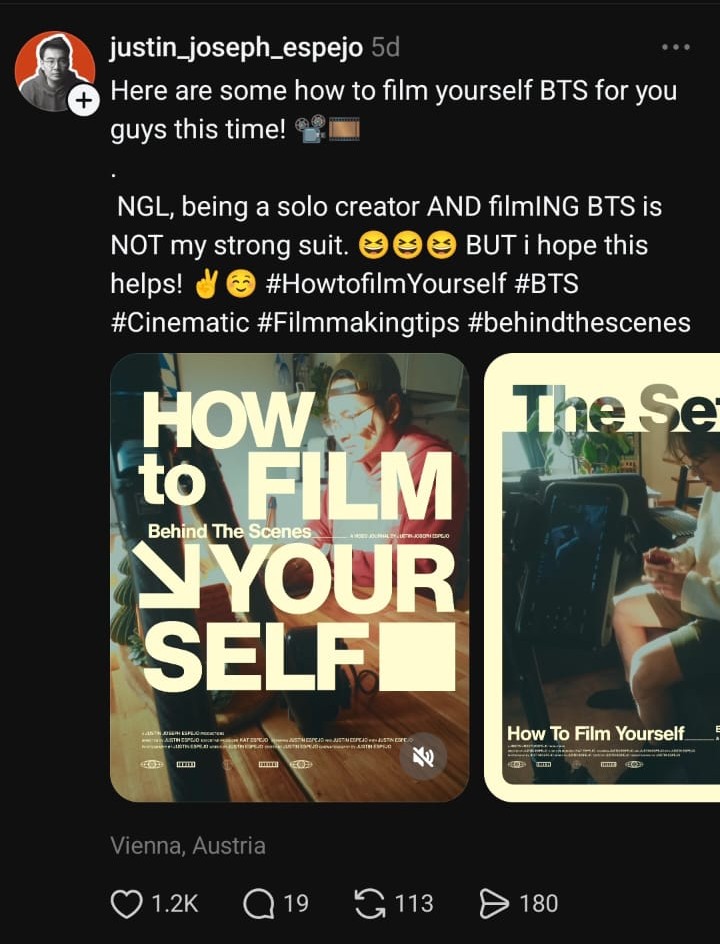
Raw, unedited photos of your workspace, your team, your process — the content that would feel “too informal” for Instagram — performs extremely well on Threads. The platform’s culture explicitly values the unpolished. A photo of your messy desk at 11 PM with “shipping in the morning” will outperform a branded announcement post almost every time.
The Technical How-To of Instagram Threads
1. Posting and Deleting
Each Thread supports up to 500 characters of text, plus images, video, or links.
Post a Thread:
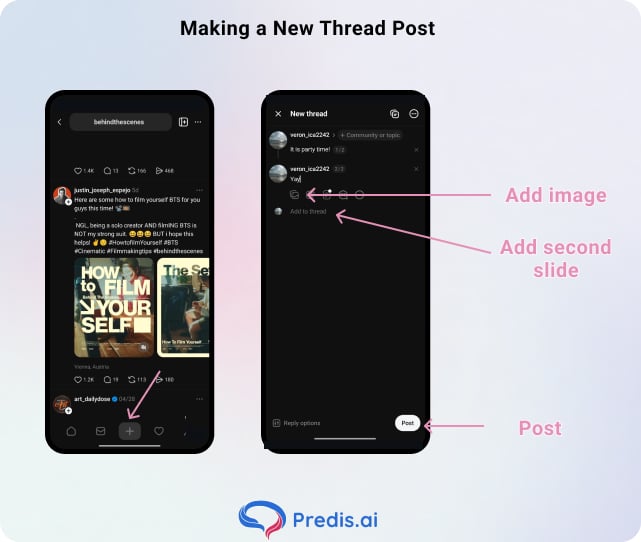
- Tap the plus icon at the bottom centre of the screen.
- Type your text in the input field — you have up to 500 characters.
- To add media, tap the image icon to attach a photo, video, GIF, or link.
- To add a second slide or continue the Thread, tap “Add to thread” below your first post — this creates a connected reply chain, ideal for longer thoughts or step-by-step content.
- Tap the audience selector (usually “Anyone” by default) to choose who can reply: Anyone, Profiles you follow, or Mentioned only.
- When ready, tap the “Post” button in the top right corner. Your Thread is live immediately.
How to delete a Thread:
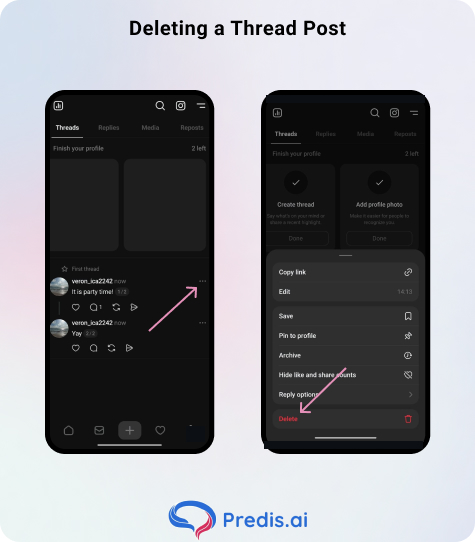
- Navigate to the post you want to remove on your profile or in your feed.
- Tap the three-dot menu (⋯) in the top right corner of the post.
- Select “Delete” to remove it permanently — this cannot be undone, and all likes, replies, and reposts associated with it will also be removed.
- Confirm the deletion when prompted.
How to archive a Thread:
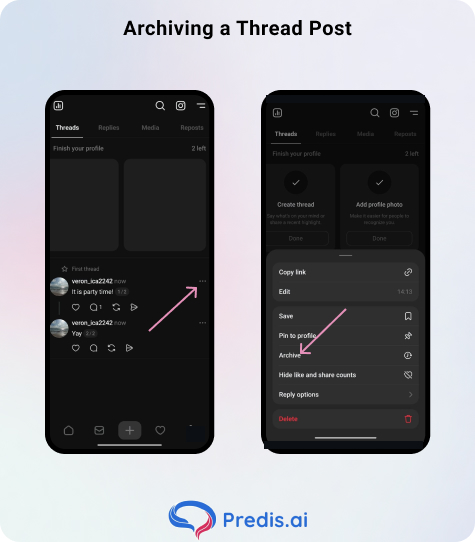
- Tap the three-dot menu (⋯) on the post.
- Select “Archive” — the post is hidden from your public profile, but the engagement data is preserved.
- To view or restore archived posts, go to Profile > Menu > Archive and tap “Show on Profile” on any post you want to make public again.
2. Blocking and Restricting
Blocking a user on Threads automatically blocks them on Instagram as well — and vice versa. The accounts are deeply linked in the moderation layer.
For less difficult situations, the Restrict feature lets you limit who can reply to your posts: options include “Anyone,” “Profiles you follow,” and “Mentioned only.” This is particularly useful for brands managing high-volume posts where open replies could attract spam or off-topic responses.
How to block a user on Threads:
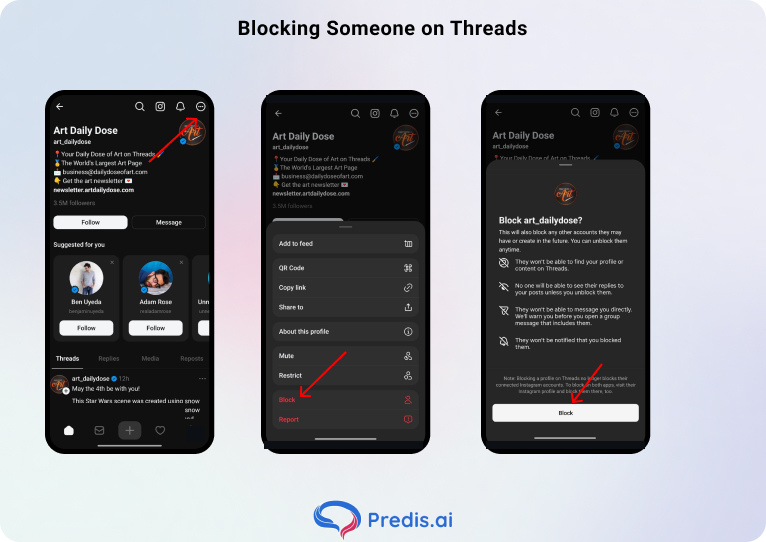
- Navigate to the profile of the account you want to block — either by tapping their username from a post or searching for them directly.
- Tap the three-dot menu (⋯) in the top right corner of their profile page.
- Select “Block” from the menu options.
- Confirm by tapping “Block” again when prompted.
- The user is now blocked on Threads. Note that blocking on Threads automatically blocks them on Instagram as well — and vice versa. The two platforms share the same moderation layer, so the block applies across both apps simultaneously.
Restrict replies on your posts:
- Before posting, tap the audience/reply selector beneath the text input field — it typically displays “Anyone can reply” by default.
- Choose one of three options:
- Anyone — open replies, visible to all
- Profiles you follow — only accounts you follow can reply
- Mentioned only — only accounts you tag in the post can reply
- Tap your preferred setting and proceed to post as normal. The restriction applies to that individual post only — you’ll need to set it again for each new Thread.
How to restrict a specific user’s comments (without blocking):
- Find a reply or comment from the user you want to restrict.
- Swipe left on their comment, or tap the three-dot menu (⋯) next to it.
- Select “Restrict” from the options.
- The restricted user can still see and reply to your posts, but their comments will only be visible to them — not to your other followers. This is useful for managing persistent spam or low-grade harassment without escalating to a full block.
Unblock a user:
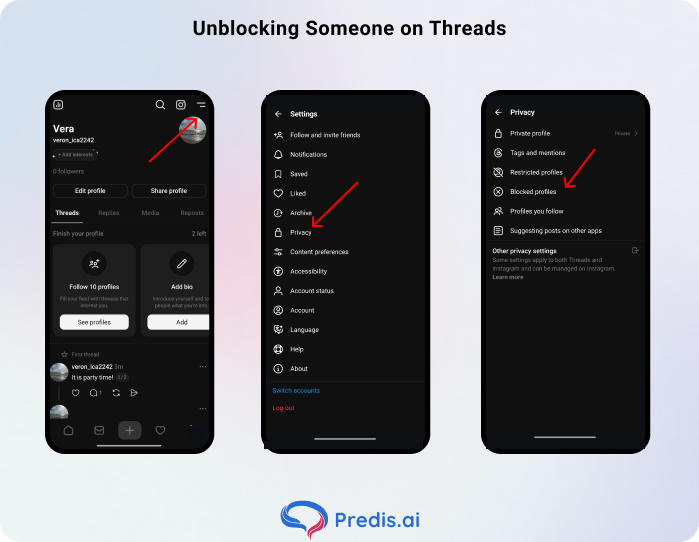
- Go to Profile > Settings > Privacy > Blocked accounts.
- Find the account you want to unblock and tap “Unblock” next to their name.
- Keep in mind: unblocking on Threads does not automatically unblock on Instagram. You’ll need to manage each platform separately if the block originated on Threads.
Deleting Your Threads Account Without Losing Instagram
This was a major pain point for early adopters who wanted to try Threads without committing permanently. As of the 2026 Account Center update, you can now delete your Threads profile as a standalone action without affecting your Instagram account. Navigate to Settings > Account > Delete Profile within Threads, or manage it through the Meta Account Center directly. Your Instagram remains completely intact.
Threads Is No Longer Optional for Meta-Based Creators
Threads in 2026 is where Instagram was in 2014 — you can build a meaningful audience without spending a dollar on ads. That window won’t last forever, but it’s wide open right now.
The brands and creators who treat Threads as a genuine channel in 2026 — not a repurposing dump for Instagram content — will have a real head start before organic reach tightens. That’s the window.
FAQ
Threads is now a placement option inside Meta Ads Manager, meaning you can run campaigns that appear on Threads alongside Facebook and Instagram.
Yes. The Explore tab now surfaces “Timely Topics,” an AI-summarized overview of what’s currently generating conversation on the platform.
Yes. Your Meta Verified status on Instagram carries over to Threads automatically. If you’re verified on Instagram, you’re verified on Threads.