


Explorez ce contenu grâce à l'IA :
Votre adresse e-mail est la clé de votre compte Instagram. C'est là que vous recevez les alertes de sécurité, les vérifications de connexion et les mises à jour importantes. Si votre adresse e-mail est obsolète ou compromise, vous pourriez avoir du mal à récupérer votre compte en cas de problème. C'est pourquoi il est essentiel de modifier votre adresse e-mail sur Instagram !
C'est pourquoi savoir comment modifier son adresse e-mail sur Instagram est essentiel pour la sécurité de votre profil. Instagram se classant deuxième en termes de piratage , avec en moyenne plus de 36 000 comptes piratés par mois , sécuriser son adresse e-mail est plus important que jamais.
Dans ce guide, nous vous expliquerons étape par étape le processus à suivre pour modifier votre adresse e-mail sur Instagram, que vous utilisiez l'application mobile, l'ordinateur de bureau ou que vous ayez besoin de mettre à jour votre adresse e-mail de contact Instagram dans votre bio. Plongeons-nous dans le vif du sujet !
Pouvez-vous changer votre e-mail sur Instagram ?
Oui, vous pouvez facilement modifier votre adresse e-mail sur Instagram ! Que vous souhaitiez mettre à jour votre adresse e-mail de connexion ou ajouter une nouvelle adresse e-mail de contact Instagram dans votre bio, Instagram vous permet d’effectuer ces modifications en quelques étapes seulement.
Votre adresse e-mail est liée à vos paramètres de confidentialité et à vos informations , ce qui vous permet de gérer qui peut accéder à votre compte . Il est donc essentiel de la tenir à jour.
Cela contribue à sécuriser votre compte, vous assure de recevoir les notifications importantes et facilite sa récupération en cas de blocage. Si vous êtes une entreprise ou un créateur de contenu , ajouter votre adresse e-mail de contact dans votre bio permet à vos clients ou abonnés potentiels de vous contacter facilement.
Dans les sections suivantes, nous vous guiderons à travers les étapes exactes pour mettre à jour votre e-mail sur mobile, ordinateur de bureau et même sans vous connecter. Commençons !
Dominez Instagram 🔥
Augmentez la productivité et le retour sur investissement d'Instagram sans effort grâce à l'IA
ESSAYEZ MAINTENANT
Comment changer d'e-mail sur Instagram à l'aide d'une application mobile ?
La mise à jour de votre adresse e-mail sur l'application mobile d'Instagram est simple et rapide. Suivez ces étapes pour vous assurer que votre compte reste sécurisé et à jour.
Étape 1 : Accédez à votre profil
- Pour commencer, assurez-vous que l'application Instagram est installée sur votre appareil. Une fois qu'il est opérationnel, vous identifier en utilisant votre nom d'utilisateur et votre mot de passe si vous n'êtes pas déjà connecté.
- Une fois connecté avec succès, accédez à votre profil. Vous pouvez le faire en appuyant sur le icône de profil situé dans le coin inférieur droit de votre écran.
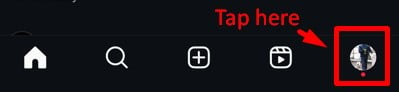
- D'un simple clic, vous vous retrouverez sur votre page de profil Instagram, prêt à apporter les modifications nécessaires.
Étape 2 : Accéder aux paramètres
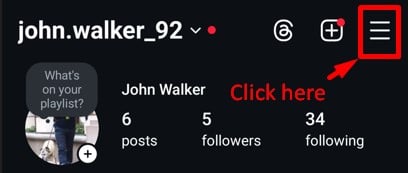
- Sur votre page de profil, recherchez le trois lignes horizontales – souvent appelée l’icône hamburger – située dans le coin supérieur droit de votre écran.
- L'événement Paramètres et activité" Le menu apparaîtra gracieusement dans la vue.
Étape 3 : Modifier le profil
- Avec le menu Paramètres à portée de main, appuyez sur le bouton «Centre des comptes" option. Cela vous mènera à un nouvel ensemble de choix.
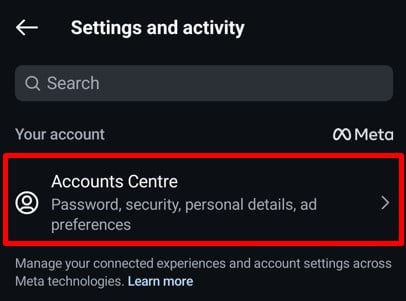
- Recherchez et sélectionnez "details personnels" sous le Paramètres section. Vous êtes désormais aux commandes, prêt à affiner les détails de votre compte.
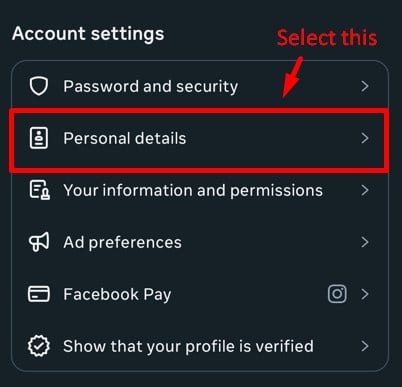
Étape 4 : supprimer l’e-mail existant
- Dans la section « Informations personnelles », vous remarquerez le « Coordonnées»Option. Clique dessus.
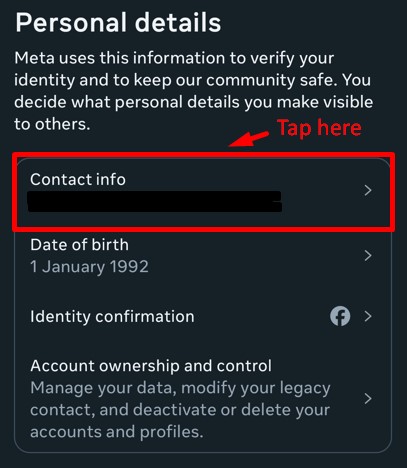
- Recherchez votre e-mail actuel et cliquez dessus pour supprimer votre e-mail avec le Supprimer l'e-mail .
- Il vous sera demandé de fournir le mot de passe de votre compte Instagram. Entrez-le et cliquez sur continuer. Votre e-mail existant sera supprimé avec succès.
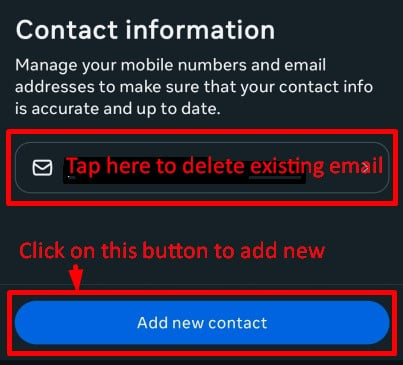
Étape 5 : Ajouter le nouvel e-mail
- Maintenant, pour ajouter le nouveau, revenez à la page Informations de contact et cliquez sur Ajouter un nouveau contact.
- Cliquez sur Ajouter une adresse e-mail. Indiquez votre nouvelle adresse e-mail et sélectionnez les comptes Instagram pour lesquels vous souhaitez définir cette adresse e-mail. Cliquez sur Suivant.
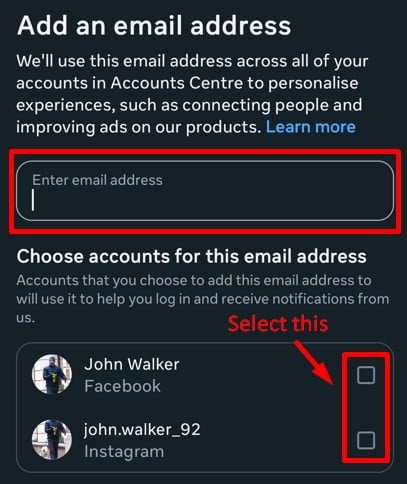
Étape 6 : Confirmation du nouvel e-mail
- Après avoir fourni votre nouvel email, entrez le code de confirmation reçu sur votre nouvel email et cliquez sur SuivantVotre email Instagram sera modifié.
Et voilà ! Vous avez modifié avec succès votre adresse e-mail sur l'application Instagram. Vous êtes ainsi assuré de recevoir des mises à jour importantes, des notifications et des options de récupération de mot de passe liées à votre nouvelle adresse e-mail.
Utilisez le Predis.ai Créateur de publications Instagram pour créer sans effort des visuels époustouflants et du contenu engageant, garantissant que votre présence sur Instagram est toujours de premier ordre.
Comment modifier l'e-mail Instagram depuis le bureau ?
Vous avez déjà observé comment modifier votre adresse e-mail Instagram depuis votre téléphone. Mais que faire si vous devez la modifier depuis votre ordinateur ? Nous avons la solution. Suivez simplement ces étapes :
Étape 1 : connectez-vous à votre site Web Instagram
Commencez par ouvrir le site Web Instagram dans le navigateur de votre ordinateur/bureau. Connectez-vous maintenant à votre compte Instagram en ajoutant votre nom d'utilisateur et votre mot de passe.
Étape 2 : Ouvrir les paramètres
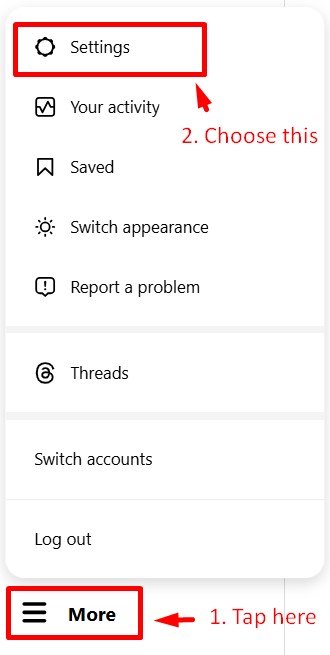
Une fois votre compte ouvert, regardez en bas à gauche de votre page. Vous verrez plus d'informations dans le coin inférieur gauche. Cliquez sur « Plus » et sélectionnez « Paramètres » dans le menu qui apparaît.
Étape 3 : Accéder au centre de compte
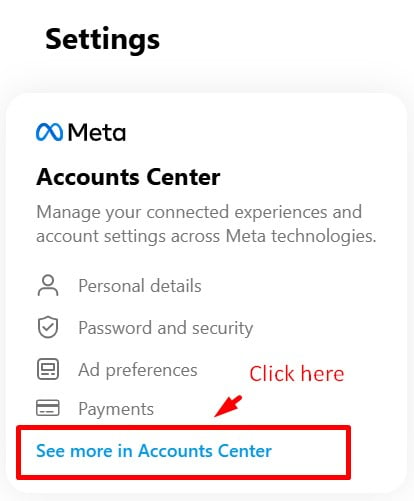
Vous pouvez maintenant voir l' option « Centre de comptes » en haut de la page. Sélectionnez ensuite « Voir plus dans le Centre de comptes » , situé sous les préférences publicitaires.
Étape 4 : Informations personnelles
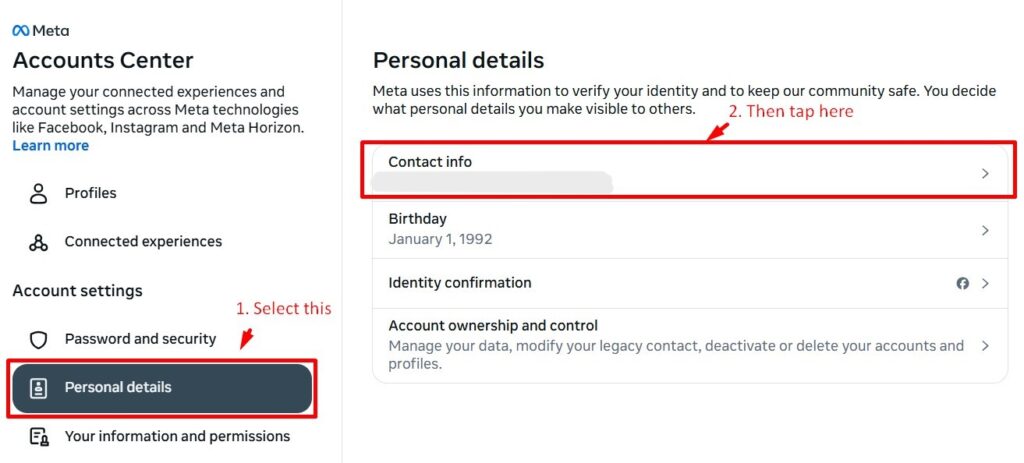
Vous êtes à deux doigts de modifier votre adresse e-mail depuis votre ordinateur. Il vous suffit maintenant de cliquer sur « Informations personnelles » , puis sur « Coordonnées » à droite.
Étape 5 : Ajouter un nouveau contact
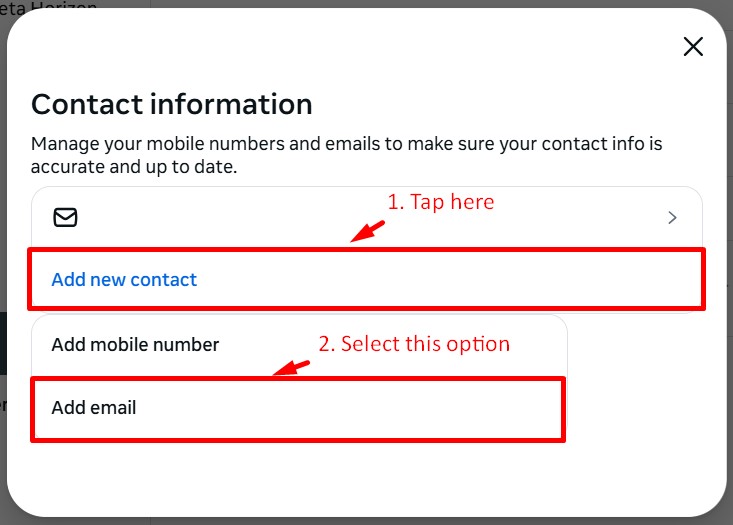
Vous accédez ainsi à la page où se déroule l'action. Vous devrez alors sélectionner « Ajouter un nouveau contact » , puis « Ajouter une adresse e-mail ».
Step-6: Changer l'email
Enfin, il est temps d'ajouter l'adresse e-mail que vous souhaitez utiliser à la place de la précédente. Saisissez-la dans l'onglet prévu à cet effet. Vous devrez également sélectionner le compte Instagram en bas de la page. Si vous avez plusieurs comptes, sélectionnez ceux que vous souhaitez associer à cette adresse e-mail, puis cliquez sur le bouton Suivant .
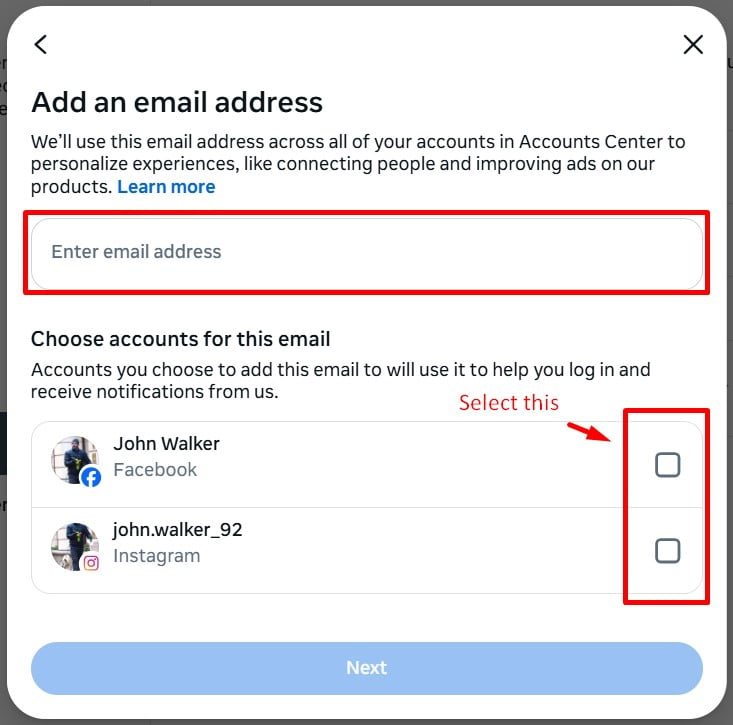
Étape 7 : Confirmer l'e-mail
Lorsque tout est terminé, vous pouvez désormais confirmer votre nouvelle adresse e-mail. Et cela mettra enfin à jour votre email Instagram adresse via votre ordinateur.
Alors maintenant, vous savez comment modifier votre e-mail sur Instagram via votre téléphone ainsi que votre bureau. Mais qu’en est-il du processus de connexion ? Supposons que vous souhaitiez modifier votre adresse e-mail Instagram au moment de vous connecter. Cela peut maintenant être dû à diverses raisons, mais c'est un processus possible.
Créez rapidement des publications époustouflantes !
Atteignez vos objectifs Instagram avec l'IA
ESSAYEZ MAINTENANT
Comment puis-je modifier mon e-mail sur Instagram sans me connecter ?
Avez-vous besoin de changer votre adresse e-mail sur Instagram sans vous connecter ? Eh bien, ce n’est pas une tâche impossible. En fait, vous devez suivre quelques étapes pour y parvenir.
Vous trouverez ci-dessous quelques étapes simples qui vous aideront à modifier votre adresse e-mail Instagram sans mot de passe ou sans vous connecter :
Étape 1 : Vous avez oublié vos informations de connexion ?
Pour commencer, vous devez d'abord installer l'application Instagram sur votre appareil. Avant de saisir votre mot de passe, cliquez sur « Mot de passe oublié ? » en bas de votre écran.
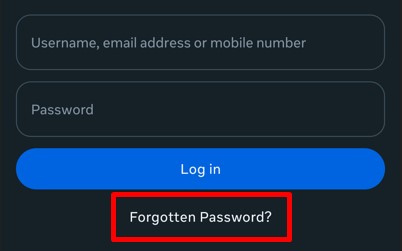
Étape 2 : Entrez le nom d’utilisateur
Vous devez maintenant saisir votre nom d'utilisateur , puis passer à l'étape suivante en cliquant sur le bouton « Suivant » en bas de la page.
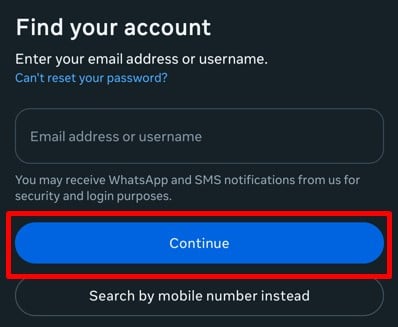
Étape 3 : Essayez une autre méthode
Vous verrez alors « Essayer une autre méthode » en bas de l’écran ; sélectionnez cette option et vous serez redirigé vers une page de demande d’assistance.
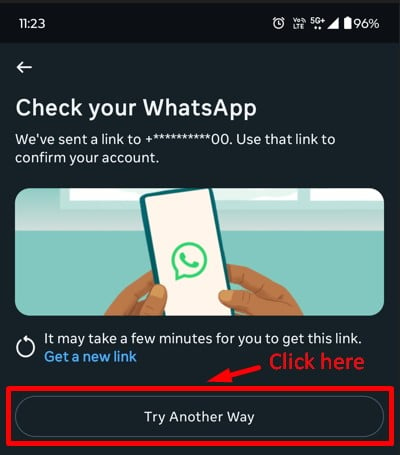
Étape 4 : Demande d’assistance
Vous pouvez désormais remplir ce formulaire et soumettre une demande d'assistance pour modifier votre adresse e-mail sans vous connecter.
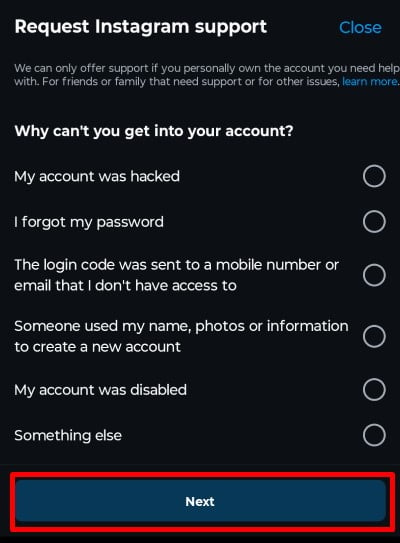
Il s'agissait donc d'une procédure simple pour vous aider à modifier votre adresse e-mail Instagram sans vous connecter à votre compte Instagram. Outre la modification de l'adresse e-mail utilisée pour votre connexion, vous pouvez également modifier l'adresse e-mail affichée pour vos spectateurs. Alors lisons à l’avance pour savoir comment cela peut être fait.
Comment ajouter l'e-mail de contact Instagram dans la bio ?
Comme vous le savez, le bouton e-mail sur Instagram montrera à vos utilisateurs comment ils peuvent vous contacter par e-mail. C'est pourquoi vous devrez ajouter un bouton e-mail à votre compte Instagram professionnel si vous souhaitez que vos téléspectateurs vous contactent par e-mail. Ensuite, vous devez vous assurer que les informations de contact que vous partagez avec votre public incluent uniquement votre identifiant de messagerie.
Vous souhaitez modifier l'adresse e-mail affichée dans votre bio Instagram ? Il vous suffit de suivre ces étapes simples :
Étape 1 : cliquez sur l’icône de profil
Tout d'abord, ouvrez votre compte Instagram. Ensuite, depuis votre page d'accueil, sélectionnez l'icône de votre profil en bas à droite.
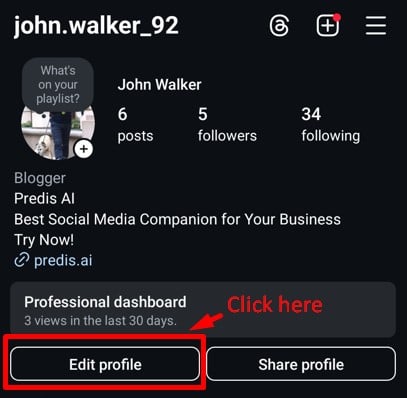
Étape 2 : Modifier le profil
Depuis votre page de profil, vous devez maintenant sélectionner le bouton « Modifier le profil » qui se trouve sous votre biographie.
Étape 3 : Informations sur le profil
Faites défiler vers le bas jusqu'à trouver les options de contact . Sélectionnez ensuite l'option de contact.
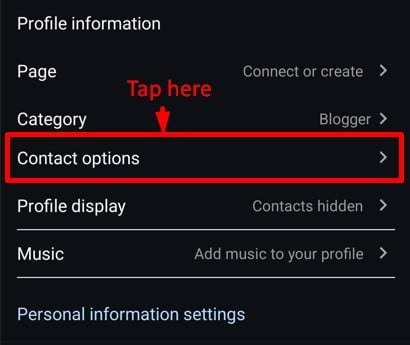
Étape 4 : Contacts publics
Désormais, à partir de là, vous pourrez voir l'adresse e-mail déjà ajoutée que vous avez indiquée précédemment. Maintenant, pour la modifier, remplacez l'adresse e-mail existante par celle que vous souhaitez.
Une fois votre adresse e-mail ajoutée, cliquez sur « Afficher les informations de contact » en bas de page. Votre nouvelle adresse e-mail apparaîtra ainsi dans votre bio. Enfin, sélectionnez la coche bleue en haut à droite.
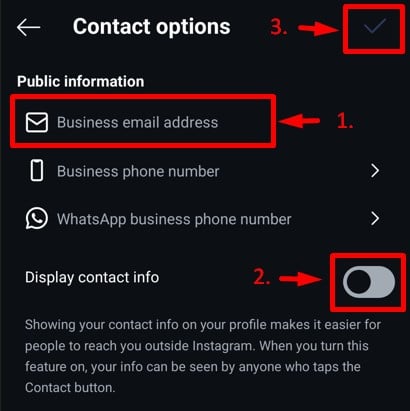
Vous avez terminé maintenant. Le bouton e-mail de votre bio montrera désormais à vos téléspectateurs la nouvelle adresse e-mail que vous avez modifiée par rapport à la précédente.
Pourquoi changer votre email Instagram ?
Dans le domaine dynamique d'Instagram, votre nom d'utilisateur Instagram joue un rôle crucial dans votre vie.aping votre identité en ligne. Les mises à jour rapides du nom d’utilisateur Instagram peuvent faire toute la différence. Voici pourquoi cela vaut la peine d’y réfléchir :
- Sécurité du compte: Imaginez renforcer votre forteresse numérique avec un simple changement de courrier électronique. En mettant régulièrement à jour votre courrier électronique, vous améliorez non seulement la sécurité de votre compte, mais vous garantissez également une récupération rapide en cas de problème de mot de passe. Running your new address through an email security checker beforehand can also confirm it’s properly protected before you rely on it for account recovery.
- Notifications Instagram : Pensez à vos notifications Instagram. La modification de votre adresse e-mail peut affecter la façon dont vous recevez des mises à jour et des alertes importantes de la plateforme. Assurez-vous d'ajuster vos paramètres de notification en conséquence après le changement d'e-mail.
- Préférence personnelle: La vie évolue, tout comme nos préférences en matière de courrier électronique. Que vous ayez adopté une nouvelle personnalité de messagerie ou laissé une ancienne derrière vous, aligner votre Instagram sur votre choix actuel garantit une communication transparente dans votre boîte de réception.
- Utilisation professionnelle : Pour ceux qui orientent leur parcours Instagram vers le professionnalisme, le passage à une messagerie professionnelle élève votre poignée de main virtuelle, donnant le ton pour un réseautage et une collaboration fructueux. Pensez donc à mettre à jour votre nom d’utilisateur Instagram pour une présence en ligne plus sécurisée et personnalisée.
Débloquez le succès Insta !
Augmentez la productivité et le retour sur investissement d'Instagram grâce à l'IA
ESSAYEZ MAINTENANT
Conclusion
Dans un monde où les hashtags et les doubles clics façonnent nos vies numériques, il y a un petit héros souvent négligé : votre adresse e-mail. C'est la clé de votre univers Instagram, vous aidant à retrouver l'accès, à rester à jour et à naviguer en toute sécurité dans votre compte.
Alors, alors que nous terminons ce guide, rappelez-vous ceci : garder votre courrier électronique à jour, c'est comme donner à votre compte un bouclier invisible. Que vous renforciez la sécurité ou que vous donniez simplement une nouvelle ambiance à votre profil, modifier votre adresse e-mail Instagram est un jeu d'enfant.
Gardez votre monde numérique sécurisé et dynamique grâce à ces étapes simples et aux bons outils à votre disposition. Si vous souhaitez rendre votre marketing Instagram sans effort, visitez Predis.ai aujourd'hui pour rendre votre création et votre gestion de contenu faciles et sécurisées avec l'aide de l'IA !
Vous pouvez également utiliser la Générateur de hashtag pour découvrir les hashtags les plus efficaces pour vos publications, augmentant ainsi votre portée et votre engagement.
FAQ
Oui , vous pouvez utiliser la même adresse e-mail pour plusieurs comptes Instagram, mais chaque compte doit avoir un nom d'utilisateur unique . Cependant, pour une meilleure sécurité et pour faciliter la récupération de vos identifiants de connexion, il est recommandé d'utiliser une adresse e-mail différente pour chaque compte.
Une fois votre adresse e-mail modifiée, Instagram la met à jour instantanément . Cependant, vous devez d'abord la confirmer en cliquant sur le lien de vérification envoyé dans votre boîte de réception. Sans cette vérification, Instagram ne pourra pas mettre à jour votre adresse e-mail.
Si vous n'avez pas reçu l'e-mail de confirmation, essayez ces correctifs :
- Vérifiez votre dossier spam/courrier indésirable pour voir s'il atterrissait là.
– Assurez-vous d’avoir entré le adresse e-mail correcte sans fautes de frappe.
– Attendez quelques minutes, car les e-mails peuvent parfois être retardés.
Si le problème persiste, renvoyer l'e-mail de confirmation depuis les paramètres Instagram.
Oui , mais seulement si vous avez toujours accès à votre ancienne adresse e-mail . Sur la page de connexion, appuyez sur « Mot de passe oublié ? » et suivez les instructions pour réinitialiser votre mot de passe à l'aide de votre adresse e-mail . Si vous n'avez plus accès à votre ancienne adresse e-mail, vous devrez suivre la procédure d'assistance d'Instagram pour vérifier votre identité et récupérer votre compte.
Articles connexes
Automatisez la création de contenu Instagram grâce à l'IA